How to Make Text Bold in LinkedIn Posts Without Special Tools
Ever wonder how people make their text bold on LinkedIn? It’s a great way to make your posts pop and grab attention. But here’s the thing: LinkedIn doesn’t have a built-in button for it. So, how’s it done?
You don't actually need fancy tools to do it. You can format your text right from your computer or phone. This guide will show you how to do it manually, so you can add some punch to your posts whenever you want.
TL;DR: 3 Ways to Make Text Bold on LinkedIn
| Method | Description | Best For |
|---|---|---|
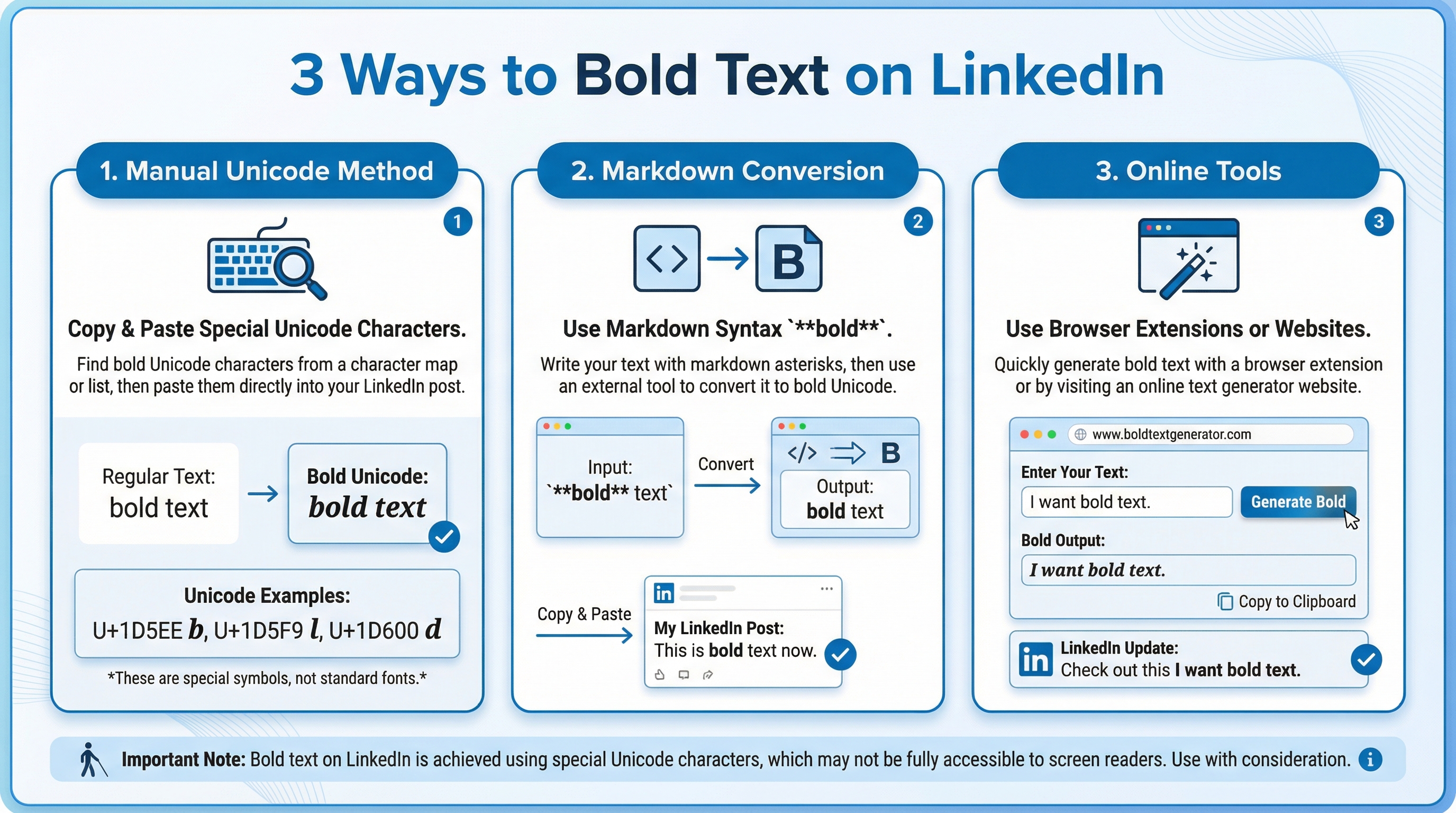
| Manual Unicode | Copying and pasting special Unicode characters that look like bold text. | Quick, one-off bolding without any external tools. |
| Markdown Conversion | Writing in Markdown (**bold**) and using a converter. | Developers or writers who prefer Markdown for everything. |
| Online Tools | Using a website or browser extension to generate bold text. | The easiest and fastest method for most people. |
Why Bother with Bold Text on LinkedIn?
In a sea of text, bold formatting helps you stand out. It’s perfect for:
- Highlighting key points: Make sure your most important messages get read.
- Creating structure: Use bold text for unofficial headlines to break up long posts.
- Drawing attention: A little bit of bold can make your entire post more visually appealing.
But remember, with great power comes great responsibility. Overusing bold text can make your post look spammy and hard to read. Use it strategically.
The Manual Method: Unicode Characters
This is the “no tools required” approach. It works because you’re not actually using a special font. You’re using different characters that just look like bold letters. These are part of the Unicode standard, which is why they work on LinkedIn and other platforms.
How to Do It:
- Find a Unicode character map or list. Your computer has one built-in (Character Map on Windows, Character Viewer on Mac). You can also search online for “Unicode bold characters.”
- Copy the bold character you need. For example, to get a bold ‘A’, you’d find and copy A (U+1D400).
- Paste it into your LinkedIn post.
It’s that simple. But, it’s also a bit tedious to do for more than a few words. You have to find and copy each letter one by one.
The Downside of Unicode
There are a few things you should know before you go all-in on Unicode bolding:
- Accessibility: Screen readers, which are used by people with visual impairments, might not read these characters correctly. They might read them out as individual characters or just say “symbol.”
- Search: LinkedIn’s search might not recognize Unicode bold text. So, don’t put your main keywords in bold.
- Platform issues: On some older devices, these characters might show up as empty boxes.
So, while it’s a neat trick, it’s best to use it for emphasis, not for critical information.
Other Ways to Get Bold Text
If the manual method sounds like too much work, you’ve got other options.
Markdown Conversion
If you’re a developer or you just love writing in Markdown, this is for you. You can write your post in a text editor using Markdown’s syntax for bold, which is two asterisks around the text (**like this**).
Then, you can use a tool like MarkdownToLinkedIn.com to convert your Markdown into LinkedIn-ready text with the right Unicode characters. It’s a great workflow if you’re already comfortable with Markdown.
Online Text Generators
This is the easiest method for most people. There are tons of free websites that will convert your text to bold Unicode for you. Just type in what you want to be bold, and the site will spit out the formatted text for you to copy and paste.
Best Practices for Using Bold Text
Ready to start bolding? Here are a few tips to keep in mind:
- Don’t overdo it. A little bold goes a long way. Too much, and your post becomes hard to read.
- Use it for emphasis. Bold text is great for highlighting a key statistic, a powerful quote, or a call to action.
- Create structure. Use bold for subheadings in longer posts to make them easier to scan.
- Mix it up. Combine bold with italics to create even more visual interest.
Go Forth and Be Bold
Now you know how to make your LinkedIn posts stand out without any special tools. Whether you choose the manual Unicode method or a converter, you have the power to add some visual flair to your content.
So, what are you waiting for? Go give it a try and see how a little bit of bold can make a big difference.
And if you want to make the process even easier, check out our free Markdown to LinkedIn converter. It’s the perfect way to streamline your content creation workflow.
Resources
Enjoyed this article?
Share it with your network
Related Articles
LinkedIn Strikethrough Text: Is It Possible?
Ever wanted to cross something out in a LinkedIn post for effect? This guide shows you how to generate strikethrough text and when you should (and shouldn't) use it.
How to Add Line Breaks in LinkedIn Posts (and Stop Them From Disappearing)
Tired of your carefully formatted LinkedIn posts turning into a wall of text? This guide shows you how to add and preserve line breaks for clean, readable content.
LinkedIn Bullet Points: How to Format Lists That Stand Out
Tired of your LinkedIn posts looking like a wall of text? This guide shows you how to use bullet points to make your content scannable, engaging, and professional.