How to Add Italic Text to LinkedIn Posts
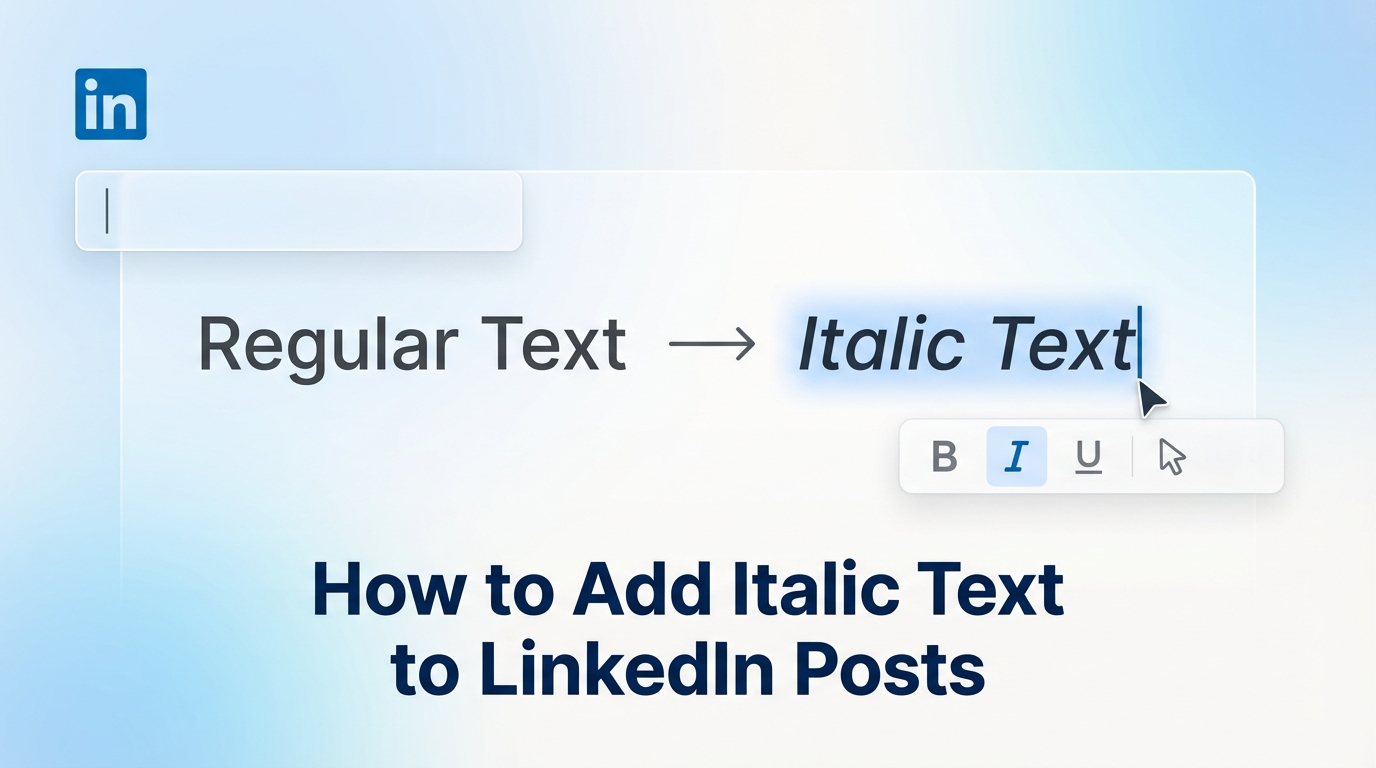
You want to add a bit of emphasis. Maybe you're sharing a powerful quote, a personal thought, or just want to make a specific word pop. But you look at the LinkedIn post editor, and there's no italic button. Nothing.
So how are people doing it? Is there a secret menu? Nope. Just a simple trick.
This guide will show you exactly how to add italic text to your LinkedIn posts. We'll cover how it works, the best ways to use it, and a critical warning about what not to do so you don't hurt your post's visibility.
TL;DR: The Quick Guide to LinkedIn Italics
| Method | How It Works | Best For | The Catch |
|---|---|---|---|
| Unicode Converter | Use a free tool to generate special text characters that look italic, then copy and paste. | Quotes, adding emphasis, and showing a bit of personality. | Can hurt your post's search visibility and be unreadable to screen readers. |
| Desktop & Mobile | The process is the same: use a browser-based tool, copy the text, and paste it into the LinkedIn app or website. | Anyone, on any device. | Requires switching between your browser and LinkedIn. |
Why Use Italics on LinkedIn? It's About Psychology
Ever heard of the von Restorff effect? It's a psychological principle that says when you have a group of similar items, the one that's different is the one you'll remember. That's what italics do for your text.
In a sea of plain-text posts, a little bit of formatting stands out. It grabs attention. But italics are more subtle than bold text. They're perfect for:
- Adding a personal touch: It can feel like you're sharing a quiet, conversational thought.
- Highlighting quotes: Setting a quote in italics clearly separates it from your own words.
- Improving readability: Breaking up long paragraphs with a bit of styled text makes your content easier to scan, especially for the 80% of users on mobile.
How Italic Text Works on LinkedIn
Here’s the secret. You're not actually making the text italic. LinkedIn doesn't support that. Instead, you're using Unicode characters.
Unicode is a massive character set that includes all the standard letters, numbers, and symbols. It also includes special mathematical and alphanumeric symbols that just so happen to look like italic letters to us. A text formatter tool simply swaps the standard letters you type for these special Unicode characters.
To a computer, a and 𝑎 are two completely different things. That's why you need an external tool to do the conversion.
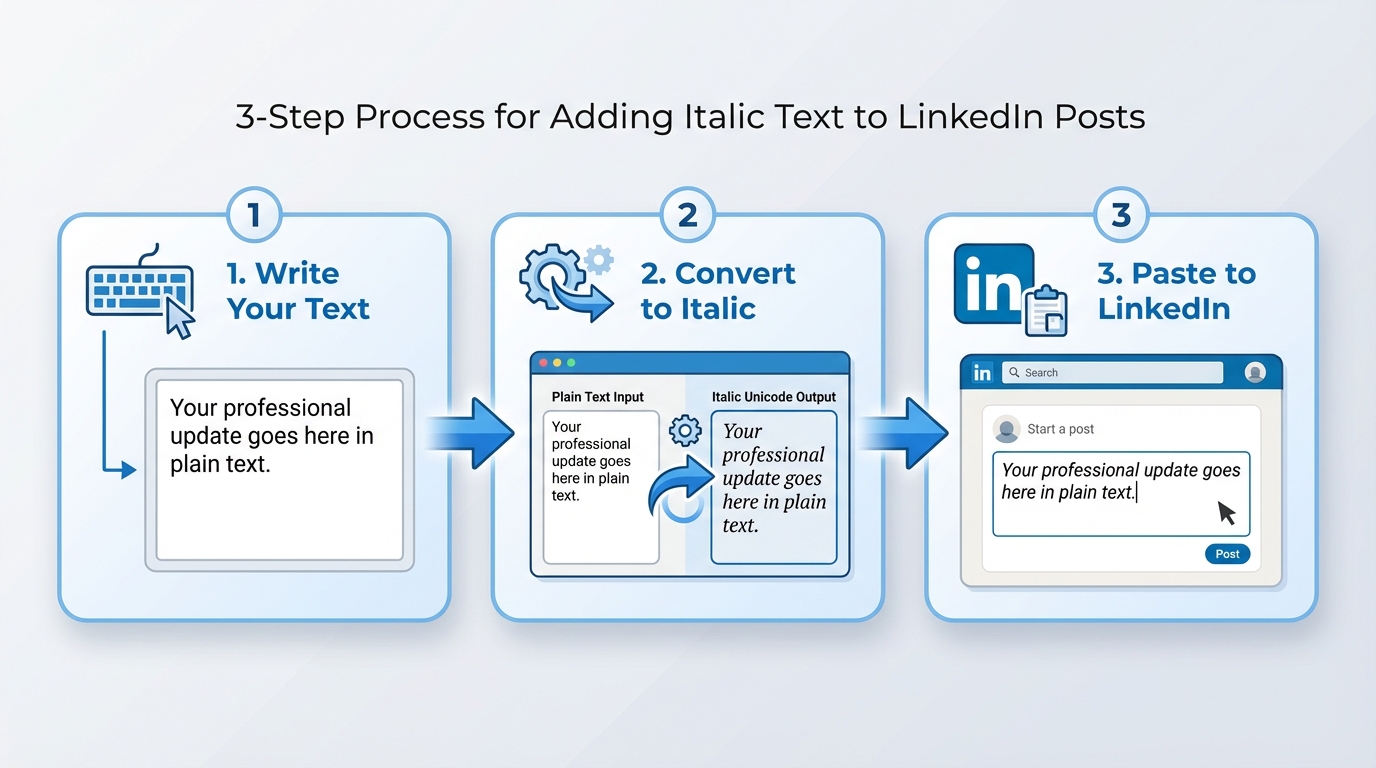
How to Add Italics to Your Posts: A Step-by-Step Guide
The process is simple and works the same whether you're on your computer or your phone.
- Open a Text Formatter: In your web browser, go to a free tool like MarkdownToLinkedIn.com. There are many others, but the principle is the same.
- Write and Convert Your Text: Type the word or phrase you want to italicize. The tool will instantly generate the italic version.
- Copy the Italic Text: Select and copy the newly generated italic text.
- Paste into LinkedIn: Go back to your LinkedIn post draft and paste the text in. It will appear as italic.
That's all there is to it. You can use this method for posts, comments, your profile summary, and even messages.
The Big Warning: Accessibility and SEO
This is the most important part of this guide. Using Unicode characters has two major downsides.
- Accessibility: Screen readers, which are used by people with visual impairments, often can't read these special characters. The software might skip the text or read out a confusing jumble of code. If your italicized text is critical to understanding your post, some people will miss out.
- Search Visibility (SEO): LinkedIn's search algorithm doesn't recognize these Unicode symbols as standard text. If you put a keyword in italics, your post may not show up when people search for that keyword.
The rule is simple: Never put your important keywords in italics.
Best Practices for Using Italics
So, how do you use italics the right way? Use them for flavor, not for the main course.
- Do use italics for quotes, book titles, or to add a touch of personal emphasis.
- Don't use them for keywords, hashtags, or critical information.
- Do use them to break up text and improve readability.
- Don't overdo it. If everything is italic, nothing stands out.
Think of italics as a tool for tone and nuance. It's for the feeling of your post, not the core substance.
A Better Workflow
Jumping back and forth between a formatter tool and LinkedIn can be a pain. A much smoother way to work is by writing in Markdown. With Markdown, you just write *your text* to make it italic.
A tool like MarkdownToLinkedIn.com lets you write your entire post using simple Markdown, then converts it all in one go to a perfectly formatted LinkedIn post, ready to be pasted. It's the most efficient way to create well-formatted content.
Resources
- MagicPost: How to Write in Italics on LinkedIn (November 2025)
- LinkedHelper: Formatting LinkedIn Posts – Texts in Bold, Italics, and Underline (January 2025)
Enjoyed this article?
Share it with your network
Related Articles
LinkedIn Strikethrough Text: Is It Possible?
Ever wanted to cross something out in a LinkedIn post for effect? This guide shows you how to generate strikethrough text and when you should (and shouldn't) use it.

How to Add Line Breaks in LinkedIn Posts (and Stop Them From Disappearing)
Tired of your carefully formatted LinkedIn posts turning into a wall of text? This guide shows you how to add and preserve line breaks for clean, readable content.
LinkedIn Bullet Points: How to Format Lists That Stand Out
Tired of your LinkedIn posts looking like a wall of text? This guide shows you how to use bullet points to make your content scannable, engaging, and professional.