LinkedIn Bullet Points: How to Format Lists That Stand Out
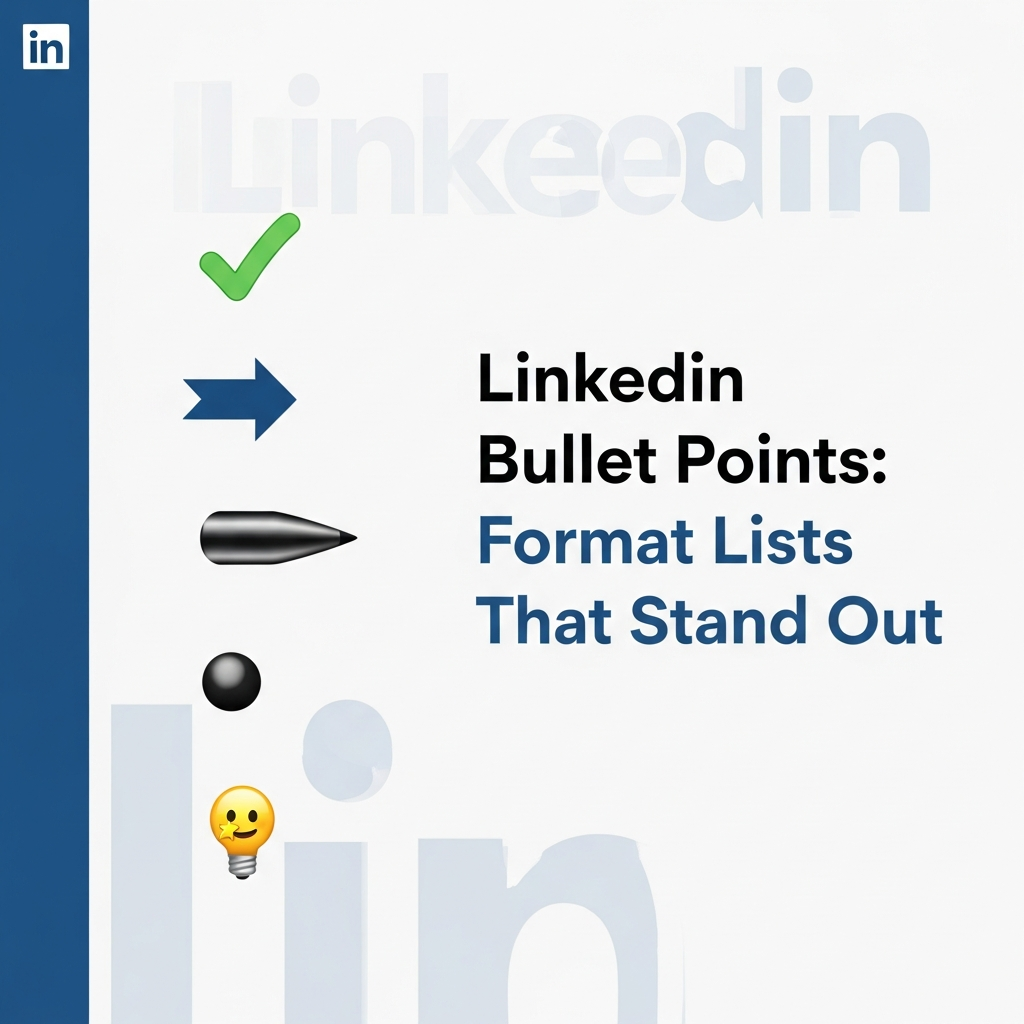
Your LinkedIn post is packed with great ideas. But it looks like a solid wall of text. Nobody's reading it.
What's the secret to getting people to stop scrolling and actually read your content? It's not just about what you say; it's about how you present it. Using bullet points is one of the easiest ways to make your posts more readable and professional.
This guide will show you exactly how to create lists that stand out on LinkedIn. We'll cover different bullet styles, the right way to use them, and a simple workflow to make formatting a breeze.
TL;DR: How to Make Your Lists Pop
| Style | Best For | The Vibe |
|---|---|---|
| Standard Bullets (•, ▪) | Everyday lists, professional updates | Clean, classic, safe |
| Checkmarks (✅, ✔) | Highlighting benefits, completed tasks | Positive, action-oriented |
| Arrows (→, ▶) | Showing steps, guiding the reader | Direct, forward-moving |
| Creative Emojis (📌, ✨) | Adding personality, grabbing attention | Fun, casual, engaging |
Why Bother with Bullet Points?
In a fast-scrolling feed, you have seconds to grab someone's attention. Bullet points break up dense text, making your content instantly easier to scan. This is huge, especially since most people use LinkedIn on their phones.
Well-formatted lists do a few key things:
- They guide the reader's eye: Lists create a clear visual path, helping people quickly find the most important information.
- They make complex ideas simple: Breaking down a process or a set of features into a list makes it much easier to understand.
- They boost engagement: When your content is easy to read, people are more likely to stick around, absorb your message, and interact with your post.
It's not just about looks. It's about making your message land with impact.
How to Add Bullet Points to a LinkedIn Post
LinkedIn's post editor doesn't have a built-in button for lists. So, how do you do it? You simply copy and paste them.
These aren't just keyboard symbols; they are special text characters called Unicode. Here’s how to get them:
- Find a Symbol: You can find lists of symbols online or just copy them from this post.
- Copy the Bullet: Highlight the bullet point you want to use and copy it (Ctrl+C or Cmd+C).
- Paste into LinkedIn: Paste the bullet (Ctrl+V or Cmd+V) into your LinkedIn post and add your text.
That's it. You can use this for any type of bullet, from a simple dot (•) to a fancy arrow (→).
Choosing the Right Bullet for the Job
The type of bullet you choose can change the tone of your post. You wouldn't use a star emoji for a serious announcement. Here’s a quick guide to picking the right style.
-
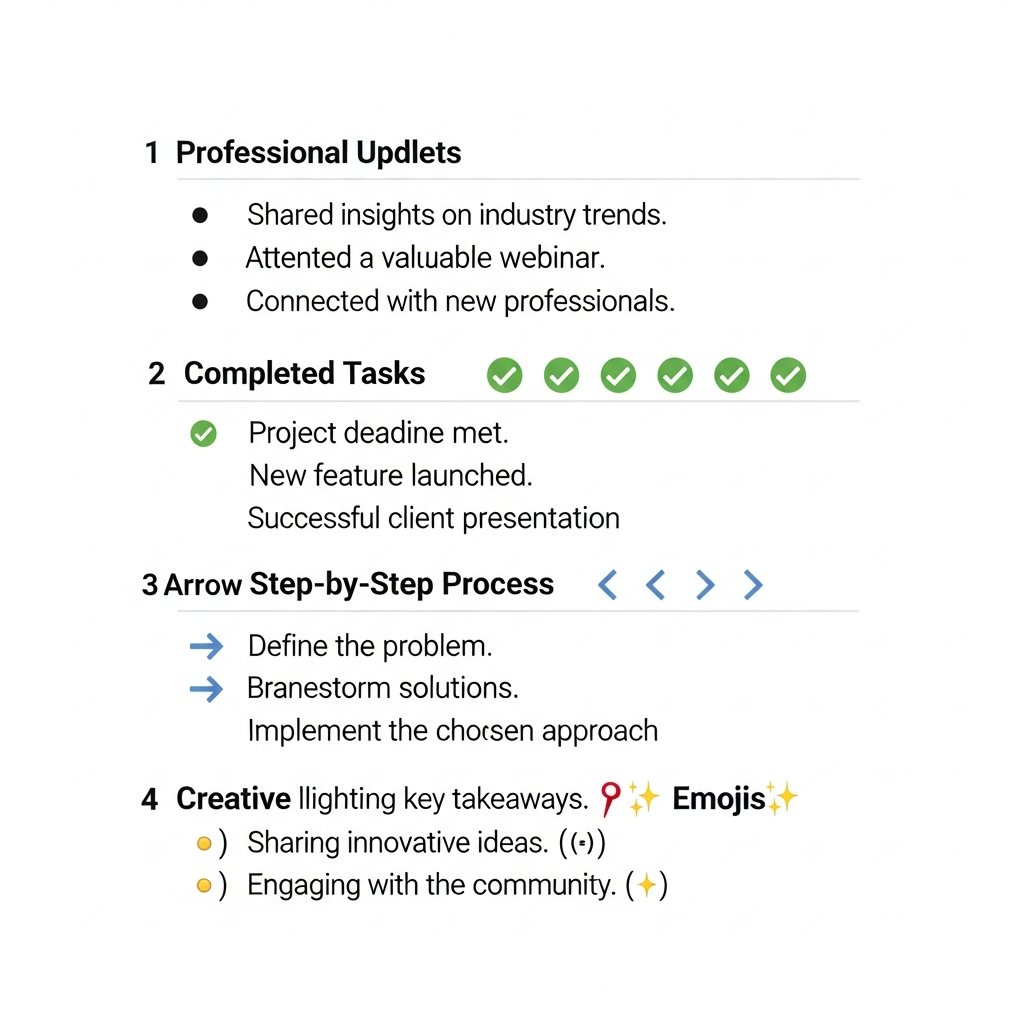
Standard Bullets (•, ▪, ○): These are your workhorses. They are professional, clean, and perfect for almost any situation. Use them for straightforward lists in your posts.
-
Checkmarks (✅, ✔): Got a list of benefits, features, or takeaways? Checkmarks give a sense of completion and positivity. They're great for showing what problems you solve.
-
Arrows (→, ▶, ➤): Arrows are perfect for guiding your reader through a process or a list of steps. They create a sense of momentum and make your points feel actionable.
-
Creative Emojis (📌, ✨, 💡): Emojis can add a splash of personality and visual interest. A pushpin (📌) can highlight a key resource, while a lightbulb (💡) can introduce a new idea. Just be sure they match your professional brand and don't overdo it.
A Quick Warning on Accessibility
While these special characters look great, it's important to know that some screen readers (software used by people with visual impairments) may not interpret them correctly. For critical information, it's often safest to stick with standard bullets or simple numbered lists.
A Better Way: The Markdown Workflow
Constantly copying and pasting symbols can get old. A much faster workflow is to write your posts in Markdown. In Markdown, you just type a hyphen (-) or an asterisk (*) to start a list.
Then, you can use a tool like MarkdownToLinkedIn.com to instantly convert your entire post into a perfectly formatted LinkedIn update, ready to paste. It handles all the character conversions for you, so you can focus on writing.
Stop letting your great content get lost in a wall of text. Start using bullet points to make your posts clear, scannable, and impossible to ignore.
Resources
- AuthoredUp: How to Add Bullet Points in LinkedIn Posts
- Dripify: Formatting LinkedIn Posts for Impactful Content
- HyperClapper: How to Format LinkedIn Posts to Increase Reach & Engagement
Enjoyed this article?
Share it with your network
Related Articles

LinkedIn Strikethrough Text: Is It Possible?
Ever wanted to cross something out in a LinkedIn post for effect? This guide shows you how to generate strikethrough text and when you should (and shouldn't) use it.

How to Add Line Breaks in LinkedIn Posts (and Stop Them From Disappearing)
Tired of your carefully formatted LinkedIn posts turning into a wall of text? This guide shows you how to add and preserve line breaks for clean, readable content.
How to Add Italic Text to LinkedIn Posts
Want to add emphasis or personality to your LinkedIn posts? This guide shows you exactly how to use italic text on LinkedIn, the right way.