LinkedIn Strikethrough Text: Is It Possible?
You’ve seen it before. A post that playfully crosses out a word to make a joke, or a correction that leaves the original text visible for transparency. It’s a simple, effective visual trick. But when you go to the LinkedIn post editor, you find... nothing. No strikethrough button. No formatting toolbar.
So, is it impossible? Not at all. You just need to know the secret.
This guide will show you exactly how to generate strikethrough text for your LinkedIn posts. More importantly, we’ll cover the critical warnings about accessibility and search visibility that you need to understand before you start crossing things out.
TL;DR: The Quick Guide to LinkedIn Strikethrough
| Method | How It Works | Best For | The Big Warning |
|---|---|---|---|
| Unicode Converter | Use a free tool to generate special text characters that look like they're crossed out, then copy and paste. | Humor, showing corrections, or indicating a change. | Can be invisible to screen readers and may hurt your post's search visibility. |
| LinkedIn Articles | The built-in Article editor has a native strikethrough button. | Long-form content published as an Article, not a Post. | Formatting does not transfer if you copy-paste from an Article to a Post. |
Why Use Strikethrough on LinkedIn?
Strikethrough is more than just a formatting gimmick. It’s a visual cue that can add another layer of meaning to your writing. It's a way to speak between the lines.
Here are a few effective ways to use it:
- To Show a Change of Thought (Humor): It’s a classic way to add a bit of personality. For example: "My biggest productivity tip is to wake up at 5 AM.
Just kidding.My real tip is to turn off notifications." - To Make a Correction Transparently: Instead of editing a post and pretending a mistake never happened, you can use strikethrough to correct it while leaving the original context. It shows honesty. For example: "Our webinar is on Wednesday at
3 PM2 PM EST." - To Create a "Before and After" Effect: This is common in sales and marketing to show value. For example: "Price:
$199now only $99!"
How Does Strikethrough Actually Work?
Here’s the secret: you aren't really formatting the text on LinkedIn. LinkedIn posts don't support that. Instead, you are using special Unicode characters that look like they have a line through them.
Specifically, you're using a "combining character." When you use a text generator, it takes each letter you type and adds a special, invisible character right after it. The most common one for strikethrough is U+0336, also known as the "Combining Long Stroke Overlay." Your browser renders these two characters together as a single, crossed-out letter.
To a computer, Hello and H̶e̶l̶l̶o̶ are completely different strings of text. That's why you can't just type it, and it's also the source of the problems we'll discuss next.
The CRITICAL Warning: Accessibility and SEO
Using Unicode characters for formatting is a clever workaround, but it comes with two major downsides that you must consider.
-
Accessibility: People with visual impairments often use screen readers to navigate the web. These tools read the content of a page aloud. When a screen reader encounters these special Unicode characters, it often doesn't know what to do. It might read out a confusing string of character names (like "H combining long stroke overlay E combining long stroke overlay...") or, worse, skip the text entirely. If your crossed-out text is important, a segment of your audience will completely miss its meaning.
-
Search Visibility (SEO): LinkedIn's internal search—and Google's external search—works by indexing standard text. Because your strikethrough text is made of different characters, the search algorithm may not recognize it as the word you intended. If you put an important keyword in strikethrough, your post may not show up when people search for that keyword.
The golden rule is simple: Never put essential information or keywords in strikethrough.
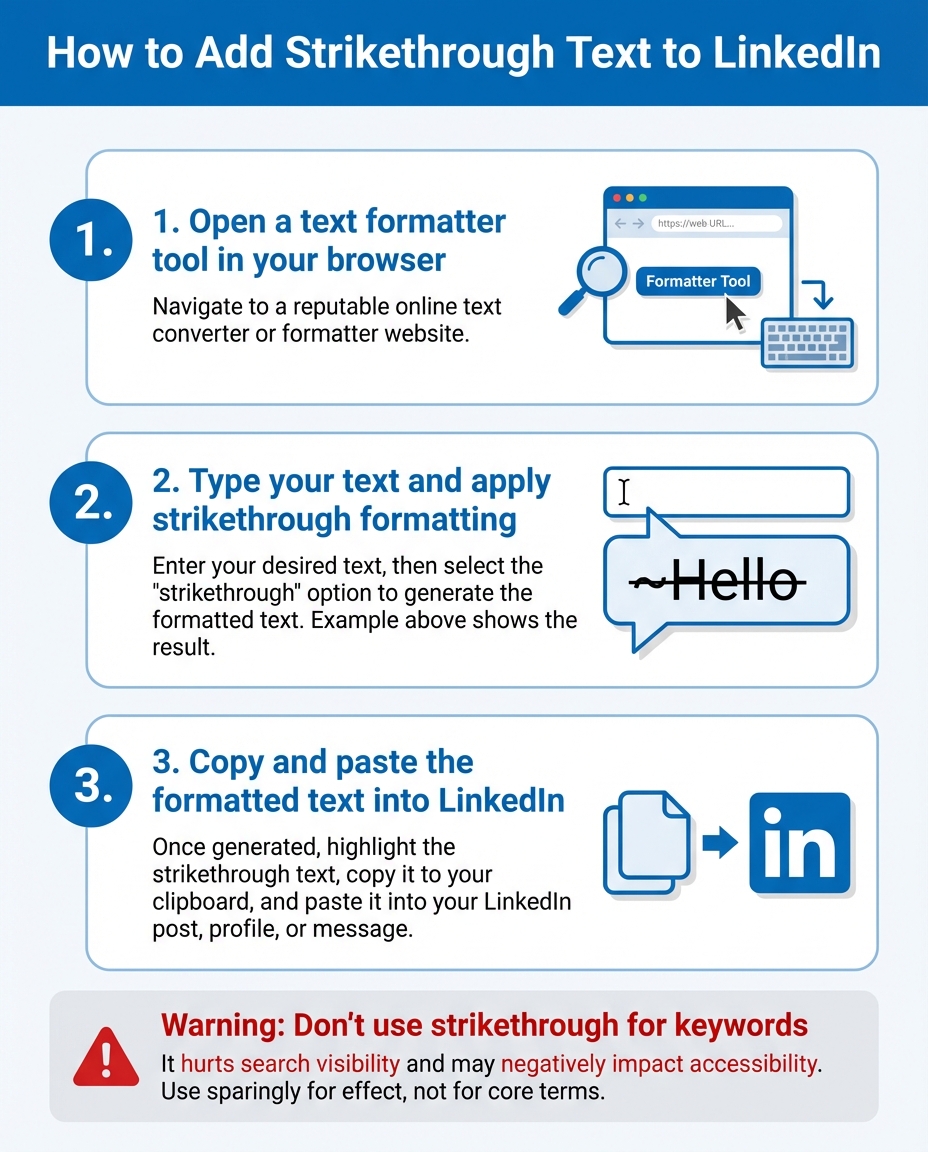
How to Generate Strikethrough Text (The Safe Way)
If you've weighed the risks and want to use strikethrough for non-essential text, the process is easy.
- Open a Text Formatter: Go to a free tool like MarkdownToLinkedIn.com.
- Write and Convert: Type the text you want to format. Many tools will have a strikethrough button or use Markdown syntax (wrapping your text in
~~tildes~~). - Copy the Formatted Text: Select and copy the generated strikethrough text.
- Paste into LinkedIn: Paste it directly into your LinkedIn post, comment, or even your profile summary.
What About LinkedIn Articles?
It's important to distinguish between a Post and an Article. LinkedIn Articles (and Newsletters) have a full, built-in text editor that does support native strikethrough, bold, italics, and more. If you are writing long-form content, you can and should use the native formatting options.
However, this formatting is part of the Article editor and will not transfer if you copy the text from an Article and paste it into a Post. For posts, you must use the Unicode method.
Final Thoughts: Use It Wisely
Strikethrough text can be a fun and useful tool when used correctly. It can add personality and clarity to your posts. But it's a tool that should be used with care. Always prioritize readability, accessibility, and searchability over stylistic flair.
So go ahead and cross things out. Just make sure you aren't crossing out your most important words in the process.
Resources
- LinkedIn Help: Formatting Text in Posts
- W3C: Accessibility and Unicode Characters
Enjoyed this article?
Share it with your network
Related Articles

How to Add Line Breaks in LinkedIn Posts (and Stop Them From Disappearing)
Tired of your carefully formatted LinkedIn posts turning into a wall of text? This guide shows you how to add and preserve line breaks for clean, readable content.
LinkedIn Bullet Points: How to Format Lists That Stand Out
Tired of your LinkedIn posts looking like a wall of text? This guide shows you how to use bullet points to make your content scannable, engaging, and professional.
How to Add Italic Text to LinkedIn Posts
Want to add emphasis or personality to your LinkedIn posts? This guide shows you exactly how to use italic text on LinkedIn, the right way.