LinkedIn Formatting Guide: Everything You Need to Know in 2025

LinkedIn isn't just a digital resume; it's a massive professional conversation happening every second. With over a billion users, standing out is tough [1]. The secret weapon that top performers use isn't just what they say, but how they say it. Strategic LinkedIn formatting is the difference between a post that gets scrolled past and one that stops the scroll, sparks a conversation, and builds authority.
But LinkedIn's formatting capabilities can feel like a black box. There's no bold button, no easy way to create lists, and character limits seem to be everywhere. This guide pulls back the curtain. We'll cover every aspect of LinkedIn formatting you need to know in 2025, from technical specifications to strategic best practices. You'll learn how to make your content more readable, engaging, and effective.
TL;DR: LinkedIn Formatting Quick Reference
For those who need the key facts fast, here is a summary of the most important formatting rules and limits on LinkedIn.
| Feature | Character Limit | Key Formatting Details |
|---|---|---|
| Posts | 3,000 | "See more" cutoff at ~210 characters. Use symbols and line breaks. |
| Comments | 1,500 | First 140-150 characters are visible before expansion. |
| Profile Headline | 220 | Your most visible professional statement. |
| About Section | 2,600 | Use paragraphs and keywords for readability. |
| Articles | ~120,000 | Supports rich text, headings, images, and video. |
| Poll Options | 140 | Polls run for exactly 7 days. |
| Connection Note | 300 | Personalize your connection requests. |
Why LinkedIn Formatting is a Game-Changer
On a crowded feed, formatting is a signal. It tells the reader that you've put thought into your content, that you value their time, and that your message is organized and important. Here’s why it matters:
- Readability and Skimmability: Most users skim content, especially on mobile. Good formatting, with short paragraphs, bullet points, and white space, makes your post easy to digest. If it looks like a wall of text, people will scroll right by.
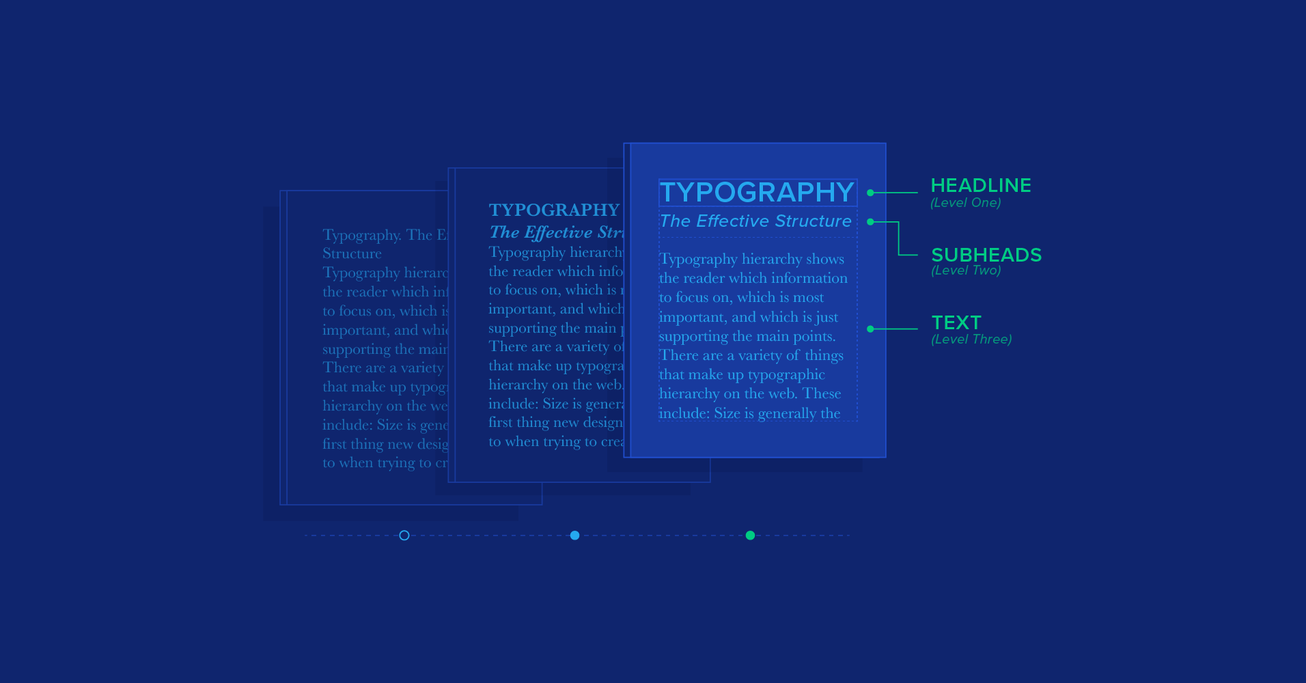
- Visual Hierarchy: Formatting creates a visual path for the reader's eye. Using bold text, symbols, or even all caps (sparingly!) helps you emphasize key points and guide the reader through your argument.
- Increased Engagement: A readable and well-structured post is more likely to be read, understood, and engaged with. The LinkedIn algorithm rewards posts that get meaningful engagement, especially within the first hour [2]. Better formatting leads to better engagement, which leads to greater reach.
- Professionalism and Credibility: Clean, consistent formatting makes you look more professional. It shows attention to detail and builds trust with your audience.
Understanding LinkedIn's Post Formats
LinkedIn offers a variety of post formats, each with its own strengths and technical specifications. Choosing the right format for your objective is the first step in effective formatting. Our flowchart below can help you decide which format best suits your goal.
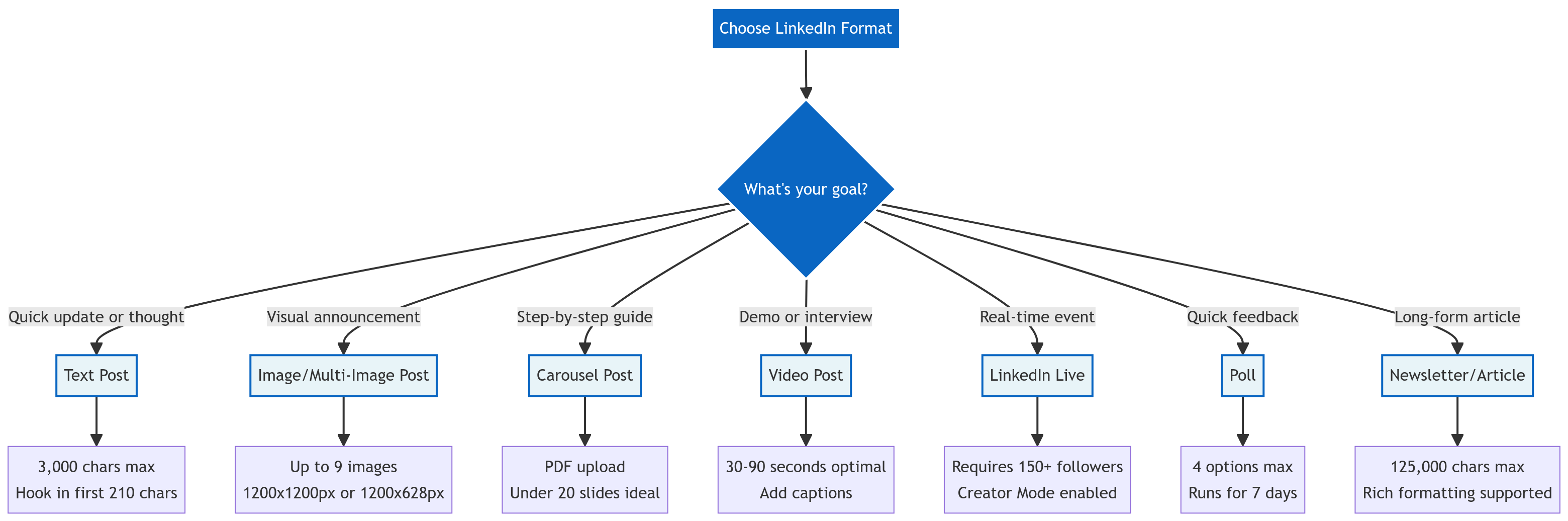
Here’s a detailed breakdown of each format.
1. Text Posts
The classic text post is the most versatile format. It's perfect for sharing insights, asking questions, and starting conversations.
- Character Limit: 3,000 characters.
- The "See More" Cutoff: This is the most critical constraint. LinkedIn hides the rest of your post after about 210 characters. Your first few lines must be compelling enough to make someone click to read the rest.
- Best Practices: Use short paragraphs (1-2 sentences). Use emojis and symbols (like →, ✓, •) to create visual breaks and guide the eye. Always end with a clear call-to-action or a question to encourage comments.
2. Image & Multi-Image Posts
Visuals stop the scroll. Image posts are great for announcements, sharing data, or showing off your company culture.
- File Specs: JPG or PNG, up to 5 MB.
- Dimensions: 1200x1200 pixels (square) or 1200x628 pixels (landscape) are optimal.
- Multi-Image Magic: You can upload up to 9 images. Posts with multiple images consistently get higher engagement than single-image posts [3]. Use them to tell a visual story or showcase different aspects of a project.
3. Carousel Posts (PDFs)
Carousels are a powerhouse for engagement. They are created by uploading a PDF, which LinkedIn converts into swipeable slides. This format is perfect for step-by-step guides, repurposing presentations, and breaking down complex topics.
- File Specs: PDF, up to 100 MB and 300 pages.
- Best Practices: Keep it concise; under 20 slides is ideal. Each slide should have minimal text and a strong visual. Start with a hook slide that promises value and end with a call-to-action.
4. Video Posts
Native video (uploaded directly to LinkedIn) is heavily favored by the algorithm. It's shared 20 times more often than other content types [3].
- File Specs: MP4, MOV, or AVI, up to 5 GB and 10 minutes long.
- Optimal Length: The sweet spot for engagement is 30-90 seconds.
- Captions are a Must: Most users watch videos with the sound off. Always burn in captions or use LinkedIn's native subtitle feature to ensure your message gets across.
5. Polls, Live, and Newsletters
- Polls: A simple way to generate quick engagement. You can have up to 4 options, and they run for 7 days.
- LinkedIn Live: Requires Creator Mode and 150+ followers. It's great for real-time interaction but requires third-party streaming software.
- Newsletters/Articles: For long-form content (up to 125,000 characters), newsletters are fantastic. They support rich formatting and notify your subscribers with every new publication.
How to Format Text: The Workarounds
LinkedIn doesn't have built-in buttons for bold or italics in posts. So, how do people do it? The secret is Unicode, a standard that includes special characters that look like formatted text.
The Unicode Method
You can use a free online tool (like YayText or LingoJam) to convert your plain text into Unicode characters. You simply type your text, copy the "bold" or "italic" version, and paste it into your LinkedIn post.
However, this method comes with a major warning.
The Accessibility Problem with Unicode
While Unicode characters look like bold or italic text to us, they are not the same to a screen reader. For a visually impaired user, a screen reader might read out the Unicode characters as a long string of code, making your post completely inaccessible [4].
Best Practice: Use Unicode formatting very sparingly. Never put essential keywords or hashtags in Unicode, as it can hurt both accessibility and potentially your post's searchability. A better approach is to use other formatting techniques to create emphasis.
Formatting Without Unicode
You can create a strong visual hierarchy without relying on fake bold and italics.
- Line Breaks: Use single-line paragraphs to create white space and make your post breathable.
- Symbols & Emojis: Use bullet points (•), arrows (→), checkmarks (✓), and relevant emojis to structure your content and draw attention to key points.
- Capitalization: Use ALL CAPS for a single, impactful word or a short phrase to create emphasis. Don't overdo it, or it can feel like you're shouting.
Formatting and the LinkedIn Algorithm
The LinkedIn algorithm's goal is to keep users on the platform by showing them relevant, engaging content. Good formatting directly feeds into this.
- Dwell Time: When a post is easy to read, users spend more time on it. This "dwell time" is a positive signal to the algorithm, which then shows your post to more people.
- Meaningful Engagement: The algorithm prioritizes thoughtful comments over simple likes. A well-formatted post that clearly presents ideas is more likely to spark a genuine discussion.
- The Golden Hour: A post that gets strong initial engagement in the first hour is more likely to be distributed widely. Clear formatting helps you make a good first impression with that initial test audience.
Conclusion: Format for Humans, Win with the Algorithm
Effective LinkedIn formatting isn't about finding secret hacks or tricking the algorithm. It's about clarity, professionalism, and respect for your reader's time. By choosing the right format for your message and using simple techniques to create a clean, readable structure, you make your content more valuable to your audience.
When you provide value to humans, the LinkedIn algorithm takes notice. Your posts will earn more engagement, reach a wider audience, and ultimately help you achieve your professional goals.
Ready to streamline your content creation process? Our Markdown to LinkedIn Converter lets you write in a clean, simple format and instantly converts your text to be perfectly formatted for LinkedIn, so you can focus on your message, not on copying and pasting symbols.
References
[1] LinkedIn Official Statistics [2] Hootsuite - How the LinkedIn Algorithm Works in 2025 [3] MagicPost.in - LinkedIn Post Formatting Guidelines 2025 [4] Alistair Croll - Why fake boldface is bad for LinkedIn posts
Enjoyed this article?
Share it with your network
Related Articles
LinkedIn Strikethrough Text: Is It Possible?
Ever wanted to cross something out in a LinkedIn post for effect? This guide shows you how to generate strikethrough text and when you should (and shouldn't) use it.
How to Add Line Breaks in LinkedIn Posts (and Stop Them From Disappearing)
Tired of your carefully formatted LinkedIn posts turning into a wall of text? This guide shows you how to add and preserve line breaks for clean, readable content.
LinkedIn Bullet Points: How to Format Lists That Stand Out
Tired of your LinkedIn posts looking like a wall of text? This guide shows you how to use bullet points to make your content scannable, engaging, and professional.