LinkedIn Formatting Guide: Everything You Need to Know in 2025
TL;DR: LinkedIn Formatting Quick Reference
| Feature | Supported? | How to Use | Best For |
|---|---|---|---|
| Bold | Yes (Unicode) | Use a LinkedIn text formatter. | Highlighting keywords, headers, and key stats. |
| Italics | Yes (Unicode) | Use a LinkedIn text formatter. | Emphasizing quotes, foreign words, or specific phrases. |
| Underline | Yes (Unicode) | Use a LinkedIn text formatter. | Not recommended; can be confused with links. |
| Strikethrough | Yes (Unicode) | Use a LinkedIn text formatter. | Showing corrections, retired ideas, or for humor. |
| Bullet Points | Yes (Unicode) | Copy-paste symbols (●, ✓, ◆) or use a formatter. | Creating readable lists and breaking up text. |
| Numbered Lists | Yes (Manual) | Type numbers manually (1., 2., 3.). | Step-by-step instructions and ordered lists. |
| Emojis | Yes (Native) | Use the built-in emoji picker on desktop or mobile. | Adding personality, visual cues, and breaking up text. |
| Line Breaks | Yes | Press Enter or Shift+Enter. | Improving readability and creating white space. |
| Headers | No (Native) | Use bold text or emojis to create visual separation. | Structuring long-form posts and articles. |
LinkedIn is no longer just a digital resume. It’s a dynamic platform for professional branding, networking, and content creation, with over a billion users worldwide [1]. With more than 1.3 million feed updates every minute, standing out is more challenging than ever [2]. This is where strategic formatting comes in. A well-formatted post is not just easier to read; it’s a powerful tool for capturing attention, boosting engagement, and conveying professionalism.
This guide will walk you through everything you need to know about LinkedIn formatting in 2025. We’ll cover what’s possible, what’s not, and the best practices to make your content shine. We’ll also explore the technical limitations and potential pitfalls of using certain formatting styles, so you can make informed decisions that align with your content strategy.
Why Formatting on LinkedIn Matters
In a sea of text-based updates, formatting is your lifeline. It helps you create a visual hierarchy, guide your reader’s eye, and make your message more digestible. Here’s why you should care about formatting:
- Improved Readability and Engagement: Well-structured content is easier to consume, especially on mobile devices where most users scroll through their feeds. Breaking up long paragraphs, using bullet points, and highlighting key phrases can significantly increase the time people spend on your post. In fact, pages that post weekly see 5.6 times more follower growth, and consistent posting can lead to five times more likes, comments, and shares [2].
- Enhanced Professionalism: A thoughtfully formatted post signals to your audience that you’ve put effort into your content. It shows attention to detail and a commitment to providing a good reader experience, which in turn reflects positively on your personal or company brand.
- Increased Accessibility: While some formatting techniques can hinder accessibility, others, like clear headings and lists, can make your content more accessible to users with screen readers. We’ll delve into the do’s and don’ts of accessible formatting later in this guide.
- Better Storytelling: Formatting helps you control the narrative. You can use bold text to create suspense, italics to convey a specific tone, and emojis to add emotional context. These small touches can transform a dry post into a compelling story.
What Formatting is Possible on LinkedIn?
LinkedIn’s native editor is notoriously basic. It doesn’t offer the rich-text formatting options you might be used to in other word processors. However, with the help of Unicode characters, you can add a variety of styles to your posts, comments, and even your profile.
Bold, Italics, Underline, and Strikethrough
These common formatting styles are not natively supported by LinkedIn, but you can use a Unicode text generator to create them. These tools convert your plain text into styled Unicode characters that you can copy and paste directly into LinkedIn.
Here’s a quick rundown of how to use each style:
- Bold: Use it to draw attention to keywords, headings, and important data points. For example: “Our new strategy resulted in a 35% increase in leads.”
- Italics: Ideal for emphasizing a specific word, quoting someone, or using foreign phrases. For example: “The key to success is to always put the customer first.”
Strikethrough:A great way to show a change of thought, correct a mistake, or add a touch of humor. For example: “Email marketing is deadEmail marketing is evolving.”- Underline: While possible, it’s generally best to avoid underlining text on LinkedIn, as it can be easily mistaken for a hyperlink, leading to a confusing user experience.
Lists: Bullet Points and Numbered Lists
Lists are one of the most effective ways to improve the readability of your posts. They break up long blocks of text and make information easier to scan.
- Bullet Points: You can create bulleted lists by copying and pasting Unicode bullet symbols (like •, ⚫, ✓, or ◆) or by using a text formatter. They are perfect for highlighting features, benefits, or key takeaways.
- Numbered Lists: For step-by-step instructions or ranked items, simply type the numbers manually (e.g., 1., 2., 3.).
Emojis and Symbols
Emojis are a fun and effective way to add personality and visual interest to your posts. LinkedIn’s built-in emoji picker makes it easy to add them on both desktop and mobile. However, it’s important to use them strategically and sparingly to maintain a professional tone. A good rule of thumb is to use no more than 3-5 emojis per post [3].
You can also use other Unicode symbols, like arrows (→), stars (★), or checkmarks (✓), to create visual cues and guide your reader’s attention.
The Hidden Dangers of Unicode Formatting
While Unicode formatting can make your posts more visually appealing, it’s not without its drawbacks. Before you go all-in on fancy fonts and styles, it’s crucial to understand the potential negative impacts on accessibility, searchability, and device compatibility.
Accessibility Issues
One of the biggest problems with Unicode-formatted text is that it’s not accessible to everyone. Screen readers, which are used by visually impaired individuals, often cannot interpret these special characters correctly. Instead of reading the styled text, they might skip over it or read out a confusing string of character names. This can make your content incomprehensible to a segment of your audience.
SEO and Searchability
Another significant issue is that LinkedIn’s search function does not recognize Unicode-formatted text as plain text. This means that if you use a fancy font for a keyword, your post won’t show up in search results for that keyword. For example, if you write “marketing strategy” using a bold Unicode generator, your post will not be found by someone searching for “marketing strategy” [4].
Device Compatibility
Finally, some older devices, particularly Android phones, may not be able to render all Unicode characters correctly. In some cases, your beautifully formatted text might appear as a series of empty boxes (□□□) to some of your readers. While this issue is becoming less common as people upgrade their devices, it’s still a risk to consider.
Given these potential problems, it’s best to use Unicode formatting sparingly and avoid using it for essential information like keywords, names, or contact details.
LinkedIn Character Limits: A Complete Guide for 2025
LinkedIn has specific character limits for different types of content. Knowing these limits is essential for crafting effective posts and optimizing your profile. Here’s a comprehensive breakdown of the most important character limits to keep in mind [5]:
| Content Type | Character Limit |
|---|---|
| Profile Summary | 2,600 |
| Headline | 220 |
| Position Title | 100 |
| Position Description | 2,000 |
| Posts | 3,000 |
| Articles | 125,000 |
| Comments | 1,250 |
| Connection Request Message | 300 |
| InMail Subject Line | 200 |
| InMail Message | 1,900 |
While the maximum character limit for a post is 3,000 characters, longer posts are not always better. Studies have shown that the optimal length for a LinkedIn post is between 1,200 and 1,800 characters for maximum engagement [6].
Best Practices for LinkedIn Formatting
Now that you understand the what, why, and how of LinkedIn formatting, let's put it all together with some best practices to help you create posts that get noticed for all the right reasons.
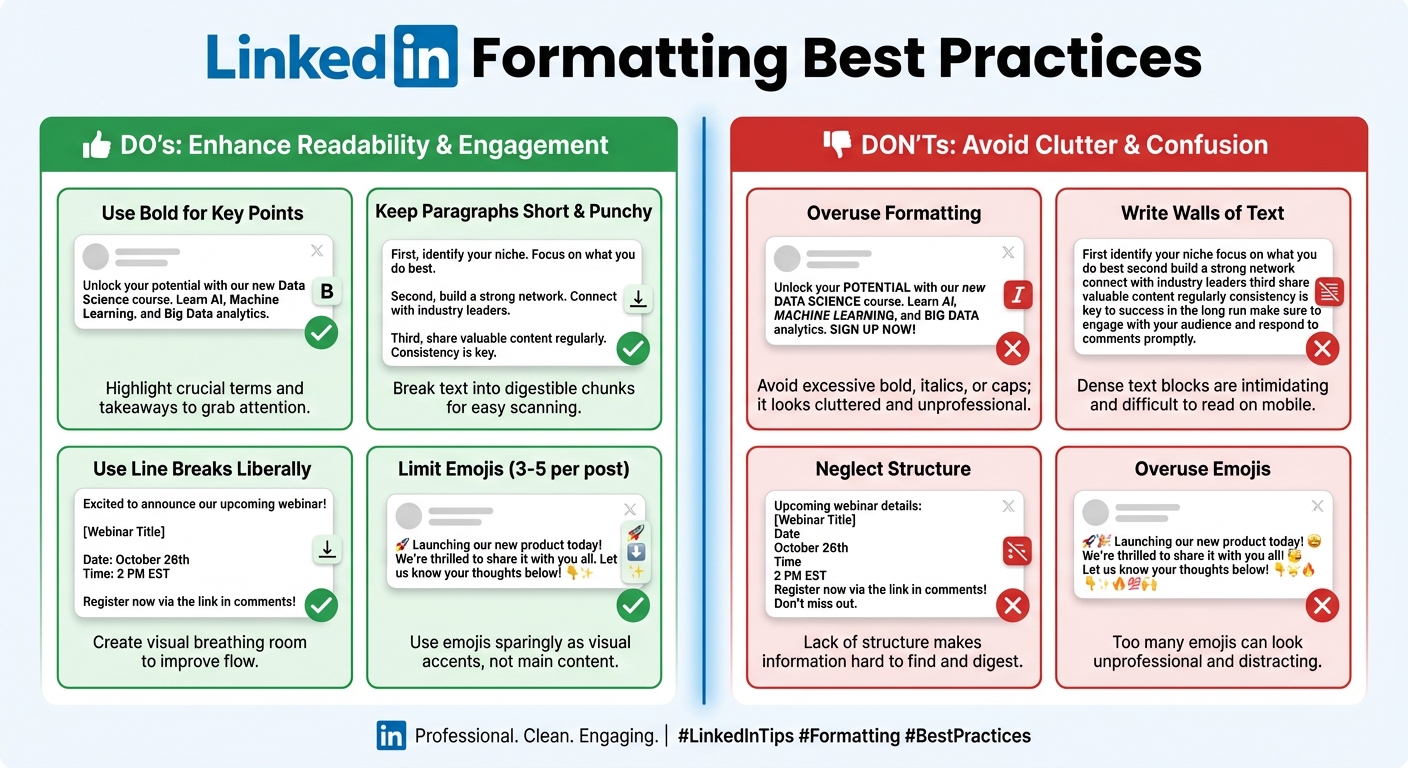
- Prioritize Readability: The primary goal of formatting is to make your content easy to read. Use short paragraphs, plenty of white space, and lists to break up your text.
- Use Formatting with Purpose: Don’t use bold, italics, or emojis just for the sake of it. Every formatting choice should have a clear purpose, whether it’s to highlight a key point, guide the reader’s eye, or add emotional context.
- Be Consistent: Develop a consistent formatting style for your posts. This will help you build a recognizable brand and make your content instantly identifiable in a crowded feed.
- Don’t Overdo It: Too much formatting can be just as bad as no formatting at all. Avoid the temptation to use too many different styles or emojis in a single post, as this can make your content look cluttered and unprofessional.
- Always Preview Your Post: Before you hit “publish,” take a moment to preview your post to make sure it looks the way you intended. What looks good in your text editor might not always translate perfectly to LinkedIn.
Conclusion
LinkedIn formatting is both an art and a science. By understanding the tools and techniques available, as well as the potential pitfalls, you can create content that is not only visually appealing but also effective in capturing attention, driving engagement, and growing your professional brand. Remember to prioritize readability, use formatting with purpose, and always keep your audience in mind.
Ready to take your LinkedIn content to the next level? Try our free LinkedIn text formatter to easily add bold, italics, and other styles to your posts.
References
[1] LinkedIn Statistics and Facts [2] 26 LinkedIn Statistics to Know for 2025 [3] The ONLY Guide to LinkedIn Post Formatting | LH2 [4] How to use bold & italics on LinkedIn – and why you perhaps shouldn't [5] 42 LinkedIn limits in 2025 [+3 tips to bypass them] [6] Best Linkedin Post Length in 2025, Why 1200 to 1800...
Enjoyed this article?
Share it with your network
Related Articles
LinkedIn Strikethrough Text: Is It Possible?
Ever wanted to cross something out in a LinkedIn post for effect? This guide shows you how to generate strikethrough text and when you should (and shouldn't) use it.
How to Add Line Breaks in LinkedIn Posts (and Stop Them From Disappearing)
Tired of your carefully formatted LinkedIn posts turning into a wall of text? This guide shows you how to add and preserve line breaks for clean, readable content.
LinkedIn Bullet Points: How to Format Lists That Stand Out
Tired of your LinkedIn posts looking like a wall of text? This guide shows you how to use bullet points to make your content scannable, engaging, and professional.