How to Bold Text on LinkedIn (Desktop & Mobile)
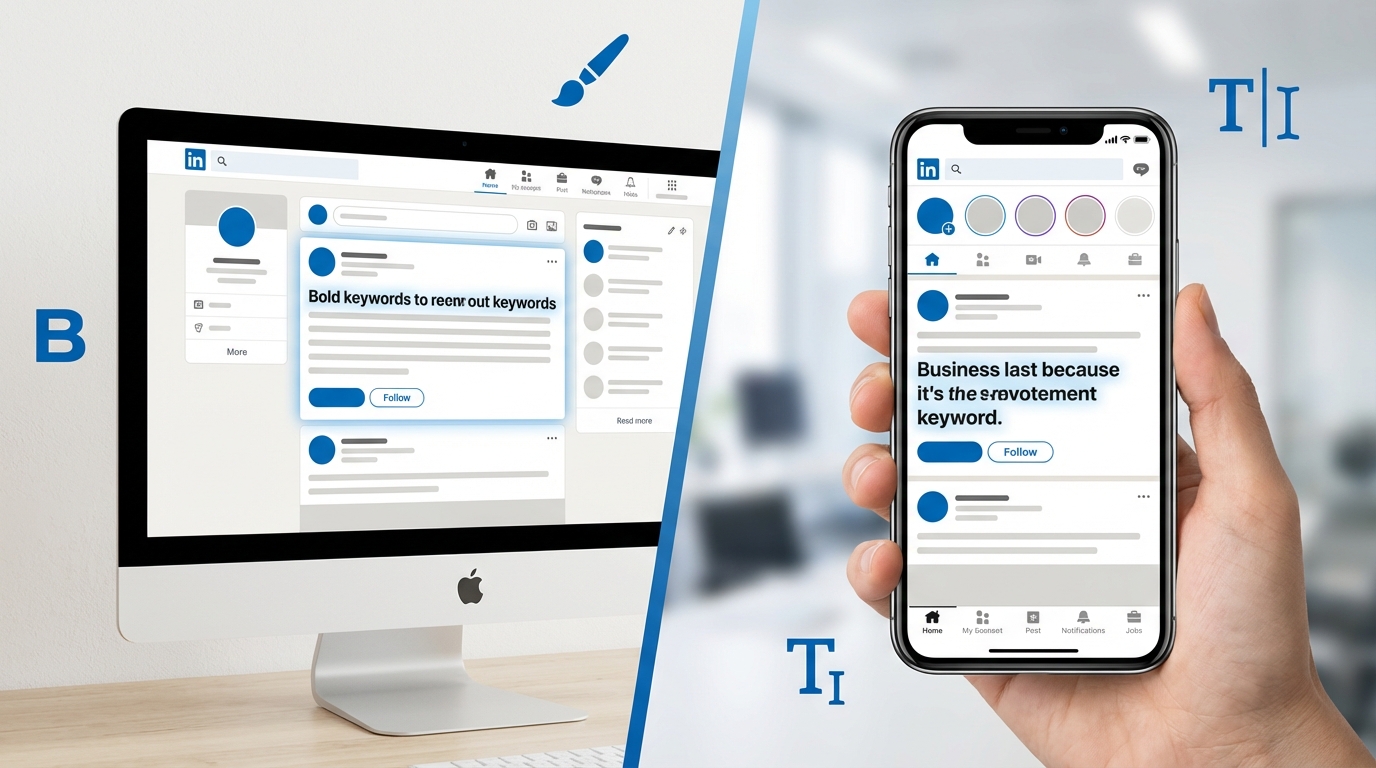
Ever wonder how people make their LinkedIn posts pop with bold text? You're not alone. In a sea of over a billion users, getting your content noticed is a real challenge. Good formatting isn't just about looking nice; it's about making your message clear, scannable, and engaging.
So, how do you do it? Can you just hit CTRL+B? The short answer is no, but don't worry. It's still simple to do, and this guide will show you exactly how to bold text on LinkedIn, whether you're on your computer or your phone.
TL;DR: How to Bold Text on LinkedIn
For those in a hurry, here’s the quick rundown. The process is the same for both desktop and mobile.
| Method | How It Works | Best For | Platform |
|---|---|---|---|
| Unicode Text Formatter | Use a free online tool to generate bold text, then copy and paste it into your LinkedIn post. | Quick, easy formatting for any LinkedIn post or comment. | Desktop & Mobile |
| LinkedIn Articles | Write a LinkedIn Article instead of a post to get native bold, italic, and heading options. | Long-form content, tutorials, and thought leadership pieces. | Desktop & Mobile |
| Copy from Word/Docs | Write your text in a word processor, format it as bold, and copy it over. | Inconsistent, but can work for simple bolding in a pinch. | Desktop & Mobile |
The bottom line: Using a Unicode text formatter is the most common and reliable way to add bold text to a standard LinkedIn post.
The Challenge: LinkedIn Doesn't Do Native Formatting
First, let's get one thing straight. LinkedIn's regular post editor is a plain text environment. This means there's no formatting toolbar, and keyboard shortcuts like Ctrl+B (or Cmd+B on Mac) won't work. It’s a bit of a letdown, especially when you want to emphasize a key point or structure your post for readability.
This limitation applies to both the desktop website and the mobile app (on iPhone and Android). So, we need a workaround.
The Go-To Method: Using a Unicode Text Formatter
This is the secret that most people use. Instead of using true bold formatting, they use special Unicode characters that look like bold letters. It's a clever trick, and it's incredibly easy to do.
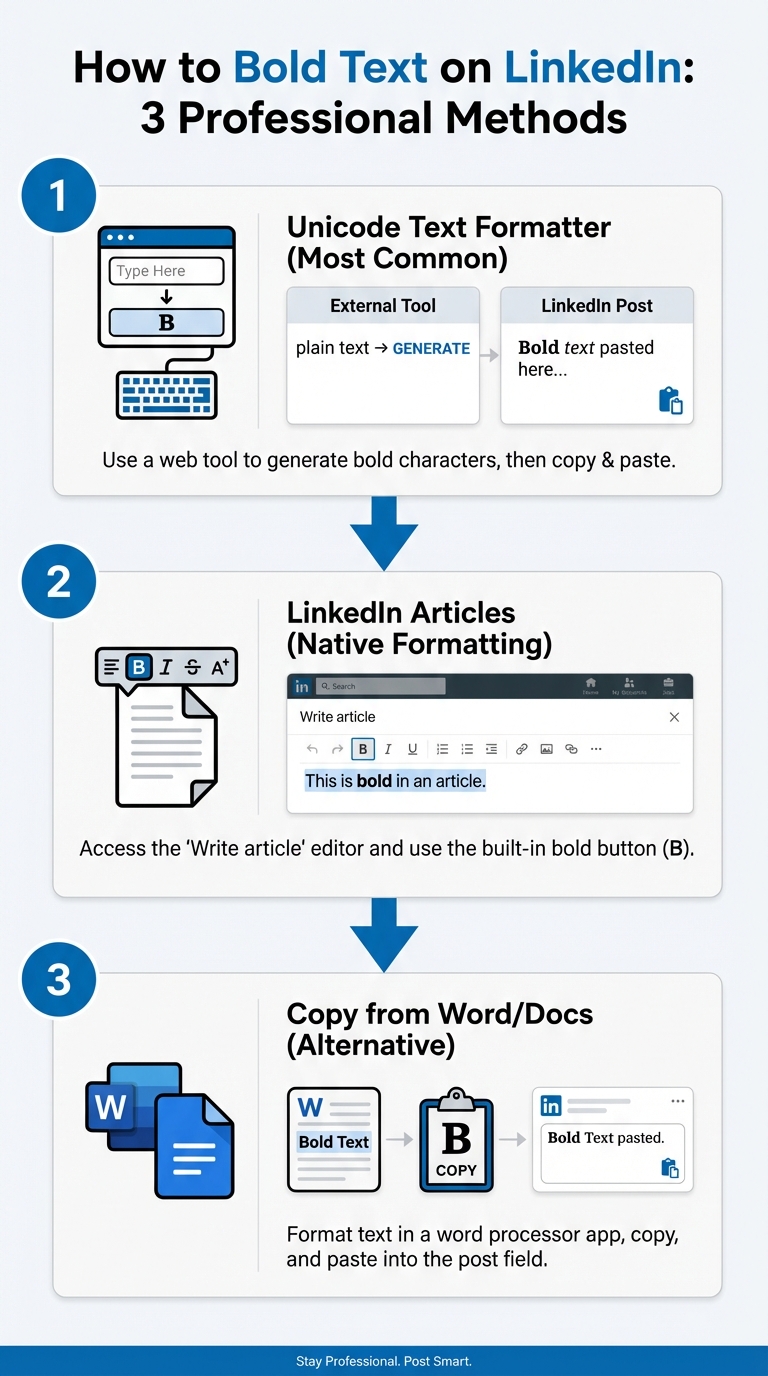
Here's the step-by-step process, which works perfectly on both desktop and mobile.
Step 1: Write Your Text
First, write out the text for your LinkedIn post. Don't worry about formatting just yet. Focus on getting your message down.
Step 2: Open a Text Formatter Tool
Next, open a free online tool like MarkdownToLinkedIn.com, Taplio, or Typegrow in your web browser. These tools are designed to convert your plain text into various styles, including the faux bold we need.
If you're on mobile, you'll just need to switch between your browser and the LinkedIn app.
Step 3: Generate and Copy Your Bold Text
Type or paste the words you want to bold into the formatter. The tool will instantly generate several style options. Find the bold style you like, and copy it to your clipboard.
For example, if you're using MarkdownToLinkedIn, you can just write your text using standard Markdown like **this** and the tool will handle the conversion for you.
Step 4: Paste it into LinkedIn
Finally, go back to your LinkedIn post draft and paste the formatted text right where you want it. That's it! The bolded text will appear directly in the editor, ready to publish.
This method works for posts, comments, and even in your profile sections like your headline or summary.
The Alternative: Writing a LinkedIn Article
If you're writing something longer and more structured, you have another option: LinkedIn Articles. Unlike posts, the LinkedIn Article editor is a full-fledged word processor. It gives you native, real formatting options.
Here you can:
- Bold and italicize text directly.
- Create H1 and H2 headings.
- Use bullet points and numbered lists.
- Add blockquotes.
This is the best choice for in-depth content where structure and readability are key. The downside is that articles are often displayed differently in the feed than regular posts, so they may get different engagement patterns.
A Word of Caution: The Downsides of Unicode
While Unicode text is a great workaround, it's not perfect. There are a couple of important things you should know before you go all-in on bolding everything.
-
Accessibility Issues: Screen readers, which are used by visually impaired individuals, often can't read Unicode characters correctly. They might skip over the text or read it out as a string of confusing symbols. For this reason, you should avoid using bold for critical information.
-
SEO and Search Problems: LinkedIn's search function doesn't always recognize Unicode characters as standard text. This means if you put an important keyword in bold, your post might not show up when people search for that term. As John Espirian, a well-known LinkedIn expert, has pointed out, this can hurt your post's visibility.
Because of these issues, it's best to use bold formatting sparingly. Use it to add emphasis, not to carry your entire message.
Best Practices for Using Bold on LinkedIn
To get the most out of your formatting, follow these simple rules:
- Don't Overdo It: Stick to bolding just a few key words or a short phrase. A little goes a long way.
- Focus on Readability: Use bolding to break up long paragraphs and guide the reader's eye.
- Check on Mobile: Always preview your post to see how it looks on a mobile device. With over 80% of users browsing on mobile, this is where your post will be seen most.
- Use a Markdown Workflow: For the most efficient process, write your posts in Markdown. A tool like MarkdownToLinkedIn.com lets you use simple syntax like
**bold**and*italic*and converts it all in one click, saving you the hassle of copying and pasting individual words.
By using bold text thoughtfully, you can make your content more engaging and professional, helping you stand out in a crowded feed.
Resources
- How to use bold & italics on LinkedIn – and why you perhaps shouldn't by John Espirian
- How to Bold Your LinkedIn Text & Format Posts Properly by Expandi
- 28 Must-Know LinkedIn Statistics for Marketers in 2025 by Sprout Social
Enjoyed this article?
Share it with your network
Related Articles
LinkedIn Strikethrough Text: Is It Possible?
Ever wanted to cross something out in a LinkedIn post for effect? This guide shows you how to generate strikethrough text and when you should (and shouldn't) use it.

How to Add Line Breaks in LinkedIn Posts (and Stop Them From Disappearing)
Tired of your carefully formatted LinkedIn posts turning into a wall of text? This guide shows you how to add and preserve line breaks for clean, readable content.
LinkedIn Bullet Points: How to Format Lists That Stand Out
Tired of your LinkedIn posts looking like a wall of text? This guide shows you how to use bullet points to make your content scannable, engaging, and professional.