How to Bold Text in a LinkedIn Post: Step-by-Step Tutorial
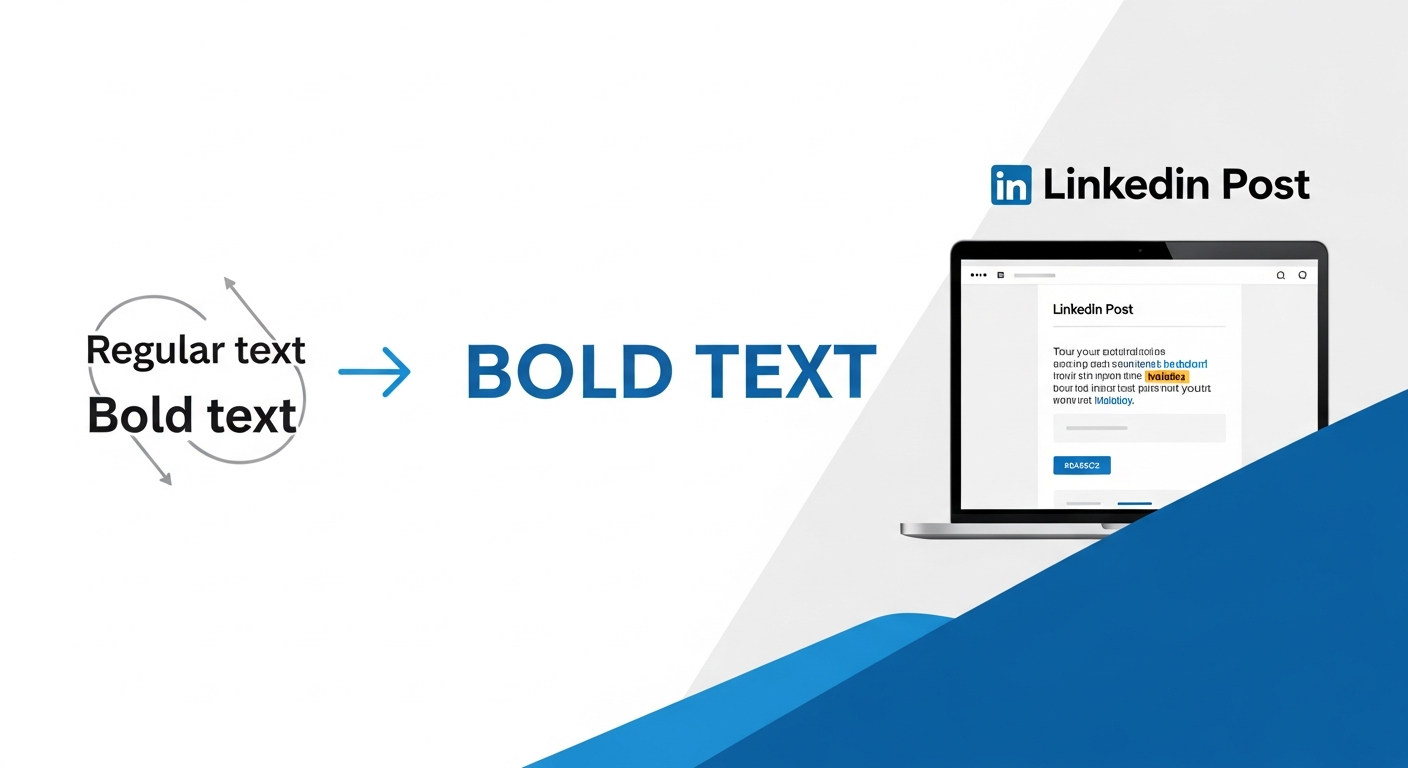
TL;DR: How to Make Text Bold in a LinkedIn Post
Want the short version? Here’s a quick reference table for the three main methods to add bold text to your LinkedIn posts.
| Method | How It Works | Best For | Pros | Cons |
|---|---|---|---|---|
| 1. Unicode Text Formatter | Use a free online tool (like our Markdown to LinkedIn converter) to generate special Unicode characters that look bold. | Quick, easy formatting for any part of LinkedIn (posts, comments, profile). | Fast, simple, works everywhere on LinkedIn. | Can cause accessibility issues for screen readers and may not be indexed by search engines. |
| 2. LinkedIn Article Editor | Write a LinkedIn Article instead of a post to access native bold, italics, and other formatting options. | Long-form content, thought leadership pieces, and in-depth tutorials. | Fully accessible, SEO-friendly, professional look. | Can only be used for Articles, not for regular posts, comments, or profile sections. |
| 3. Copy & Paste from Editors | Write your text in an editor like Google Docs or Microsoft Word, apply bold formatting, and then copy-paste it into LinkedIn. | Simple bolding when you're already writing in another application. | Quick and familiar workflow. | Formatting doesn't always transfer correctly; other styles like underlines or special fonts are lost. |
Our recommendation? For regular posts, use a Unicode formatter for emphasis but avoid it for critical keywords. For important, long-form content, always use the native LinkedIn Article editor.
Why Bother Formatting Your LinkedIn Posts?
In a sea of over 1.2 billion users and a firehose of content, getting noticed on LinkedIn is tougher than ever [1]. A massive, unbroken wall of text is one of the fastest ways to make someone scroll right past your hard-won insights. Good formatting is no longer a nice-to-have; it’s a strategic necessity.
Well-structured posts are easier to read, scan, and digest. This improved readability directly translates to higher engagement. Data from 2025 shows that the median engagement rate on LinkedIn has climbed to an impressive 8.01%, proving that users are actively interacting with content that captures their attention [2].
Bolding key phrases is one of the simplest yet most effective ways to add visual hierarchy to your posts. It helps you:
- Grab Attention: A pop of bold text can stop the scroll and draw a reader's eye to your most important points.
- Improve Scannability: Readers can quickly identify key takeaways without reading every single word.
- Emphasize Key Concepts: Drive home a critical statistic, a powerful quote, or a call-to-action.
But if you’ve ever tried to use the classic Ctrl+B or Cmd+B shortcut in a LinkedIn post, you’ve probably been disappointed. LinkedIn’s native post editor doesn’t support this kind of rich-text formatting directly. So, how is everyone else doing it?
This guide will walk you through the three primary methods for how to bold text in a LinkedIn post, explaining the step-by-step process for each and covering the crucial pros and cons you need to be aware of.
Method 1: Use a Unicode Text Formatter (The Most Common Way)
This is the method you see used most often across LinkedIn. It involves using an external tool to convert your standard text into special Unicode characters that look like bold text.
What is Unicode Text?
LinkedIn’s post editor technically only supports plain text. However, the Unicode standard includes a massive library of characters, including mathematical symbols and characters from different languages that happen to look like bold, italic, or otherwise stylized English letters. For example, instead of the standard character "B", you're using a separate Unicode character like "𝐁".
Tools called "Unicode text formatters" or "fancy text generators" make this conversion process instant.
Step-by-Step Tutorial
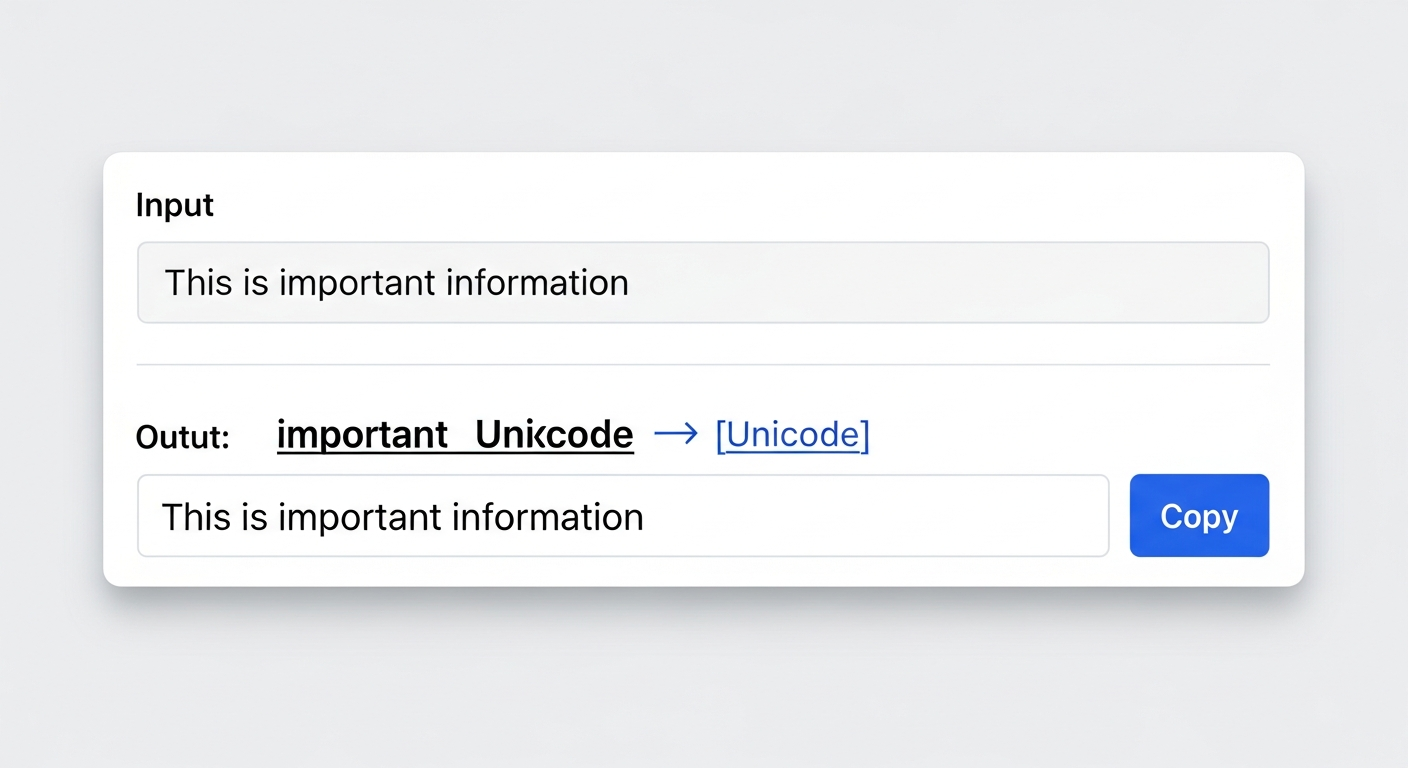
- Choose a Formatter Tool: There are many free options available. For developers and writers who prefer an efficient workflow, our Markdown to LinkedIn Converter is an excellent choice. Other popular tools include Typegrow and Taplio.
- Write Your Text: Type or paste the content of your LinkedIn post into the tool's input box.
- Apply Bold Formatting: Select the text you want to bold and apply the bold style. In our tool, you can simply use Markdown syntax (
**your text**). The tool will automatically convert it to the corresponding Unicode characters. - Copy the Formatted Text: The tool will provide an output of your post with the Unicode characters applied. Click the "Copy" button.
- Paste into LinkedIn: Navigate to your LinkedIn homepage, start a new post, and paste the copied text. The bold formatting will appear directly in the editor.
Pros and Cons of Using Unicode
This method is popular for a reason, but it comes with significant trade-offs.
Pros:
- Fast and Easy: It's the quickest way to add emphasis to a post.
- Works Everywhere: You can use Unicode characters in posts, comments, your profile headline, and your "About" section.
Cons:
- Accessibility Issues: This is the biggest drawback. Screen readers, which are used by visually impaired individuals, often cannot interpret these special characters correctly. They may read them out as their mathematical symbol names or simply skip them, making your content inaccessible [3].
- Search and SEO Problems: LinkedIn's search algorithm may not recognize these Unicode characters as standard text. If you bold an important keyword like "content marketing", your post may not show up in search results for that term [4].
- Device Incompatibility: On some older devices or operating systems, these characters may fail to render, appearing as empty boxes (□) or other strange symbols.
Verdict: Use this method sparingly for emphasis on non-essential words. Never use it for important keywords or phrases that are critical to the meaning of your post.
Method 2: Use the LinkedIn Article Editor (The Professional's Choice)
If you want true, SEO-friendly, and fully accessible bold formatting, the LinkedIn Article editor is your best bet. LinkedIn Articles are distinct from posts; they are long-form pieces of content that function more like blog posts on your profile.
Step-by-Step Tutorial
- Start a New Article: On the LinkedIn homepage, instead of clicking into the "Start a post" box, click the "Write article" button located just below it.
- Enter the Article Editor: This will take you to a dedicated editor that looks much more like a traditional word processor.
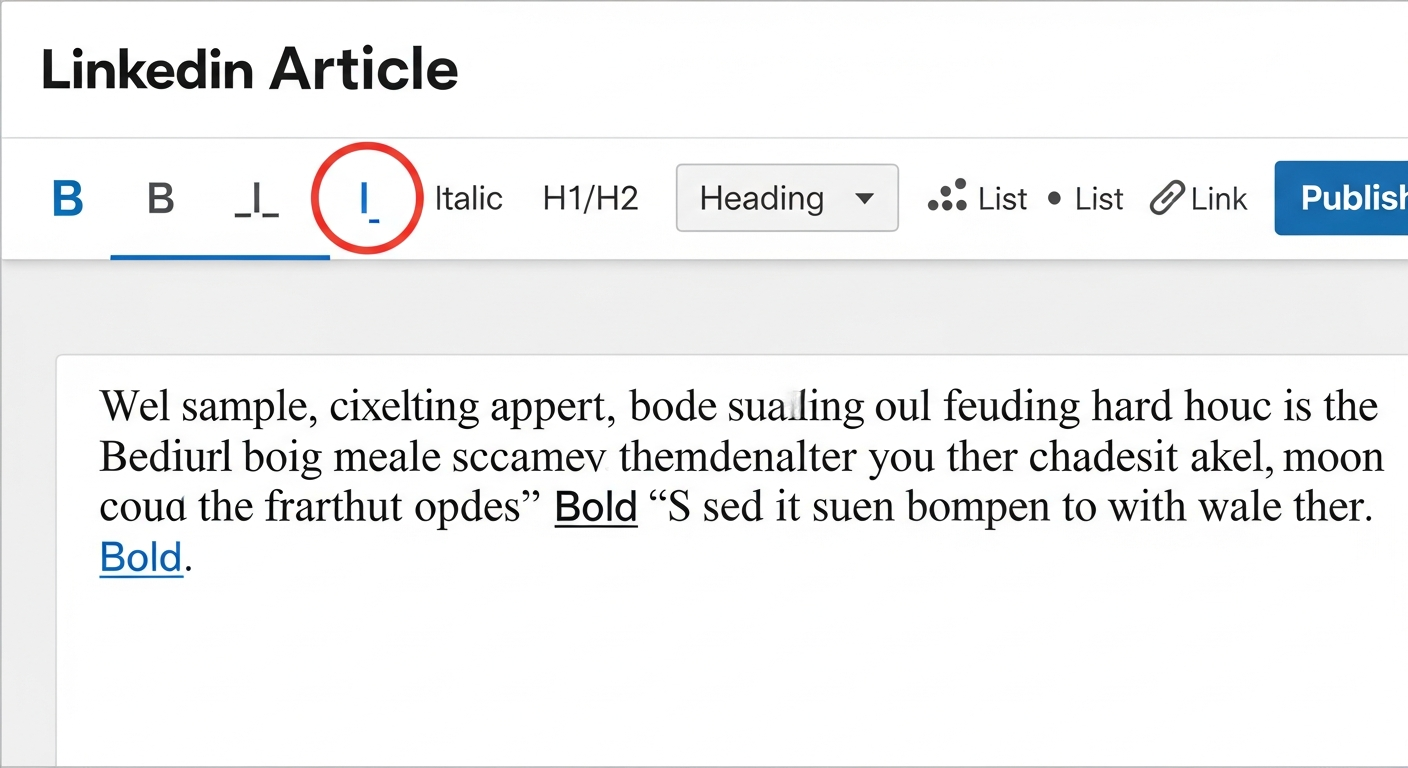
- Write and Format Your Content: Here, you can write your content and use the built-in formatting toolbar to apply bold, italics, headings, bullet points, and more. You can also use standard keyboard shortcuts like
Ctrl+B. - Add a Cover Image and Title: Give your article a compelling headline and a cover image to attract readers.
- Publish: Once you're finished, click "Next" and then "Publish". LinkedIn will create a post to share your new article with your network.
Pros and Cons of Using the Article Editor
Pros:
- Fully Accessible and SEO-Friendly: This is real rich-text formatting. Screen readers can interpret it perfectly, and LinkedIn's search algorithm will index your keywords correctly.
- Professional Appearance: Articles look polished and are ideal for establishing thought leadership.
- More Formatting Options: You get access to H1/H2 headings, blockquotes, and other features not available in regular posts.
Cons:
- Only for Articles: You cannot use this method for regular posts, comments, or your profile. It's a separate content format.
- More Time-Consuming: Writing an article is a bigger commitment than writing a post.
Verdict: This is the best method for long-form, high-value content like comprehensive guides, industry analysis, or thought leadership pieces. It's the most professional and responsible way to format your content.
Method 3: Copy and Paste from Another Editor
This is a simple, low-tech workaround that sometimes gets the job done for basic formatting.
Step-by-Step Tutorial
- Write in Another Editor: Compose your post in a word processor like Microsoft Word or a cloud-based tool like Google Docs.
- Apply Bold Formatting: Use the editor's built-in tools to bold the text you want to emphasize.
- Copy and Paste: Select all the text, copy it, and paste it directly into the LinkedIn post editor.
Pros and Cons of Copy-Pasting
Pros:
- Simple Workflow: Many people prefer to draft content in a separate editor before publishing.
Cons:
- Inconsistent Results: This method is unreliable. While simple bold and italics often transfer over, the formatting can sometimes be lost in the copy-paste process. Other formatting like underlines, strikethroughs, or different fonts will not carry over.
- Still Uses Unicode: It's important to understand that when this does work, it's because the editor is converting the text to Unicode characters behind the scenes, just like a formatter tool. This means it still suffers from the same accessibility and SEO drawbacks.
Verdict: This method is a quick-and-dirty option if you're already writing in another editor, but it's not a reliable or recommended workflow. You're better off using a dedicated Unicode formatter for consistency.
Best Practices for Using Bold Text on LinkedIn
Now that you know how to bold text, it's crucial to use it effectively. Over-formatting can make your posts look cluttered and unprofessional. Here are some best practices to follow:
- Don't Overdo It: Stick to bolding just a few key words or a single short phrase per paragraph. The goal is emphasis, and if everything is emphasized, nothing is.
- Focus on Key Takeaways: Use bold to highlight statistics, main points, or the core message of your post.
- Create Section Headers: In longer posts, you can use bold text to create unofficial section headers to break up the content and guide the reader.
- Combine with Other Formatting: Use bold in conjunction with short paragraphs, white space, and emojis to create a visually appealing and easy-to-read post.
- Prioritize Accessibility: Always keep the accessibility and SEO drawbacks of Unicode in mind. For a truly inclusive and discoverable content strategy, lean on the native formatting options provided in LinkedIn Articles whenever possible.
Conclusion: Format with Purpose
Learning how to bold text in a LinkedIn post is a valuable skill for anyone looking to increase their content's impact and engagement. While Unicode formatters offer a quick and easy solution for adding emphasis, it's critical to be aware of their limitations, especially concerning accessibility and search visibility.
For the most professional, accessible, and SEO-friendly results, nothing beats the native formatting tools available in the LinkedIn Article editor. By choosing the right method for the right context, you can create content that not only stands out in a crowded feed but also provides a positive and inclusive experience for all readers.
Ready to streamline your content creation process? Try our Markdown to LinkedIn Converter to instantly transform your Markdown text into perfectly formatted LinkedIn posts, complete with bold, italics, and lists, all while maintaining a clean and efficient workflow.
References
[1] Sprout Social. (2025, April 4). 28 LinkedIn statistics that marketers must know in 2025. https://sproutsocial.com/insights/linkedin-statistics/
[2] Buffer. (2025, July 15). 26 LinkedIn Statistics to Know for 2025. https://buffer.com/resources/linkedin-statistics/
[3] Scope. (2021, October 25). How special characters affect screen readers. https://business.scope.org.uk/accessibility-screen-readers-special-characters-and-unicode-symbols/
[4] Espirian, J. (2019, December 11). How to use bold & italics on LinkedIn – and why you perhaps shouldn't. https://www.linkedin.com/pulse/how-use-bold-italics-linkedin-why-you-perhaps-john-espirian
Enjoyed this article?
Share it with your network
Related Articles
LinkedIn Strikethrough Text: Is It Possible?
Ever wanted to cross something out in a LinkedIn post for effect? This guide shows you how to generate strikethrough text and when you should (and shouldn't) use it.

How to Add Line Breaks in LinkedIn Posts (and Stop Them From Disappearing)
Tired of your carefully formatted LinkedIn posts turning into a wall of text? This guide shows you how to add and preserve line breaks for clean, readable content.
LinkedIn Bullet Points: How to Format Lists That Stand Out
Tired of your LinkedIn posts looking like a wall of text? This guide shows you how to use bullet points to make your content scannable, engaging, and professional.