How to Bold Text in LinkedIn Posts (3 Easy Methods)
Ever wonder how some LinkedIn posts just pop? They use formatting like bold text to grab your attention and guide you through their message. While LinkedIn doesn't have a built-in bold button, you're not out of luck. It's actually pretty simple to add bold text to your posts, and it can make a huge difference in how your content is received.
This guide will walk you through three easy methods to bold text in your LinkedIn posts. We'll cover everything from quick copy-paste tricks to dedicated formatting tools, so you can make your posts more engaging and professional.
TL;DR: 3 Ways to Bold Text on LinkedIn
For those in a hurry, here’s a quick rundown of the methods we'll cover. Each has its pros and cons, so you can pick the one that best fits your workflow.
| Method | How It Works | Best For | Pros | Cons |
|---|---|---|---|---|
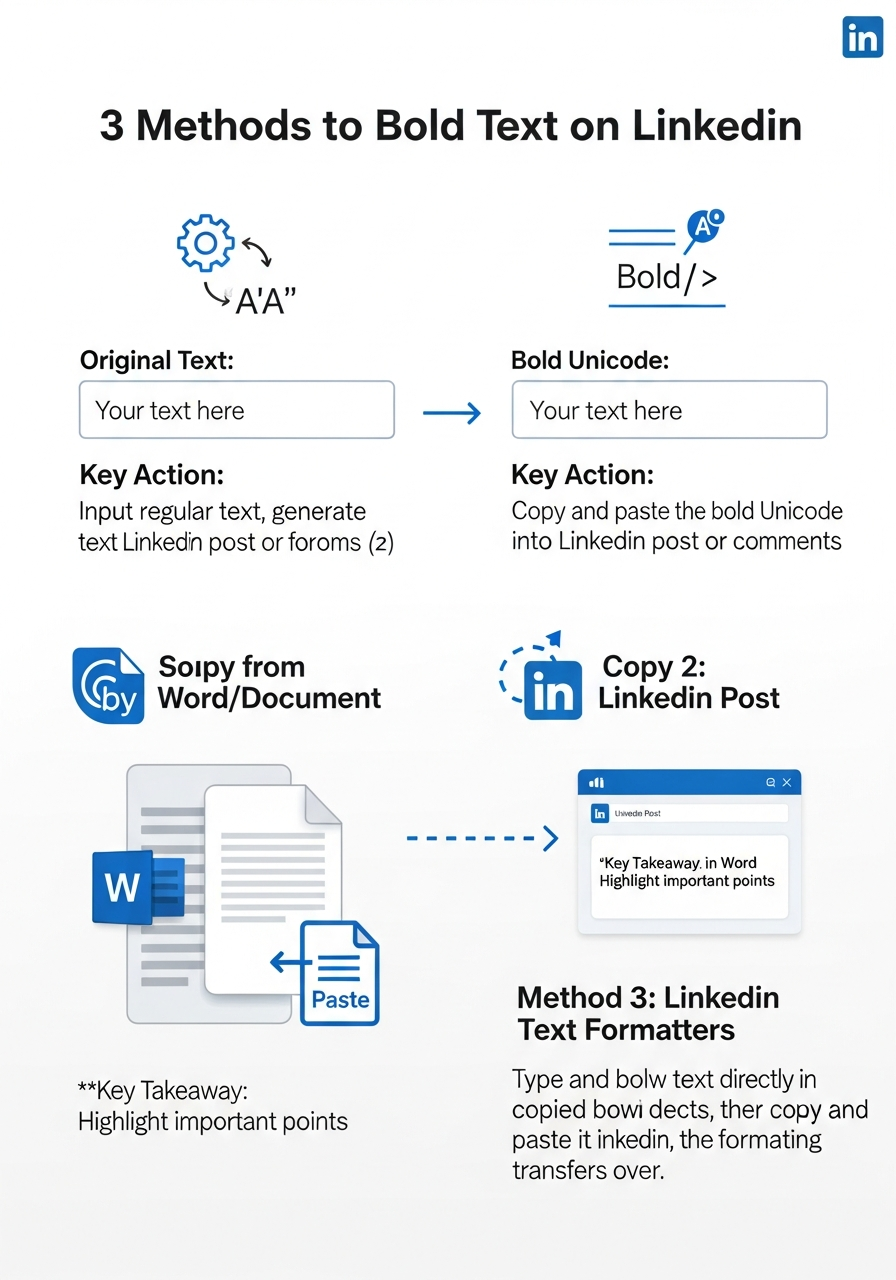
| 1. Unicode Generators | You type your text into a generator, and it outputs bold Unicode characters that you can copy and paste. | Quick, one-off bolding. | Fast, free, and no software needed. | Can be bad for accessibility and SEO. |
| 2. Copy from Docs | You write your post in a word processor like Google Docs or Microsoft Word, then copy and paste it into LinkedIn. | Simple formatting and drafting. | Easy and familiar workflow. | Not all formatting transfers perfectly. |
| 3. Text Formatters | You use a dedicated online tool to write and format your post, often with a live preview. | Optimizing posts for engagement. | Preview feature, more formatting options. | Can be overkill for simple posts. |
Now, let's dive into the details of each method.
Method 1: The Unicode Trick
This is the most common and direct way to get bold text on LinkedIn. It might sound technical, but it's as simple as copy and paste.
How It Works
What you're actually doing is using a different set of characters that look like bold letters. These are part of the Unicode standard, specifically from the Mathematical Alphanumeric Symbols block [1]. These symbols were created for mathematical notation, but they've found a second life as a formatting workaround on social media.
Here’s how to do it:
- Go to a Unicode text generator like YayText or LingoJam.
- Type the text you want to bold into the input box.
- The tool will instantly generate several bold and italic styles. Find the serif or sans-serif bold style that looks best.
- Copy the bolded text.
- Paste it directly into your LinkedIn post, comment, or even your profile headline.
That's it! The bold text will appear just as you pasted it.
Method 2: The Classic Copy-Paste from a Document
If you already draft your posts in a word processor, this method is for you. It's a straightforward way to get basic formatting into your LinkedIn posts.
How It Works
Simply write your post in an application like Microsoft Word or Google Docs and use the standard Ctrl+B or Cmd+B to bold your text. When you're ready, copy the entire post and paste it into the LinkedIn post editor.
For the most part, basic formatting like bold, italics, and bullet points will carry over. However, more complex formatting like underlines, strikethroughs, or different fonts and colors will not [2].
This method is great for drafting longer posts and ensuring your spelling and grammar are correct before publishing.
Method 3: Using a Dedicated LinkedIn Text Formatter
For those who want more control and a better preview of their post, dedicated LinkedIn text formatters are the way to go. These tools are built specifically for formatting LinkedIn content and often come with extra features.
How It Works
Tools like Typegrow and Shield offer a simple interface where you can write your post and apply formatting with the click of a button. The best part is that many of these tools include a live preview that shows you exactly how your post will look on LinkedIn, including the crucial "see more" cutoff.
This allows you to optimize your opening lines to hook the reader and encourage them to expand your post. It's a small detail that can have a big impact on your engagement.
Best Practices and Important Warnings
While bolding text can make your posts more readable, there are a few things to keep in mind:
- Don't overdo it. Too much bold text can look unprofessional and make your post harder to read. Use it sparingly to emphasize key points.
- Accessibility matters. Screen readers for visually impaired users sometimes struggle to read Unicode characters correctly. Stick to standard bold styles and avoid decorative fonts.
- The algorithm is watching. While LinkedIn's algorithm doesn't seem to penalize the use of Unicode, it's best to avoid putting important keywords, hashtags, or company tags in bold, just in case.
Conclusion: Make Your Posts Stand Out
Formatting your LinkedIn posts with bold text is a simple yet powerful way to increase readability and engagement. Whether you choose the quick Unicode trick, the classic copy-paste, or a dedicated formatting tool, you now have the knowledge to make your content stand out in a crowded feed.
And if you're looking for an even easier way to format your LinkedIn posts, check out our Markdown to LinkedIn Converter. It lets you write your posts in Markdown and instantly converts them to a LinkedIn-friendly format, bold text and all.
References
[1] Mathematical Alphanumeric Symbols - Wikipedia [2] How to Bold Your LinkedIn Text & Format Posts Properly - Expandi
Enjoyed this article?
Share it with your network
Related Articles
LinkedIn Strikethrough Text: Is It Possible?
Ever wanted to cross something out in a LinkedIn post for effect? This guide shows you how to generate strikethrough text and when you should (and shouldn't) use it.
How to Add Line Breaks in LinkedIn Posts (and Stop Them From Disappearing)
Tired of your carefully formatted LinkedIn posts turning into a wall of text? This guide shows you how to add and preserve line breaks for clean, readable content.
LinkedIn Bullet Points: How to Format Lists That Stand Out
Tired of your LinkedIn posts looking like a wall of text? This guide shows you how to use bullet points to make your content scannable, engaging, and professional.