Bold LinkedIn Text Generator: Free Online Tool
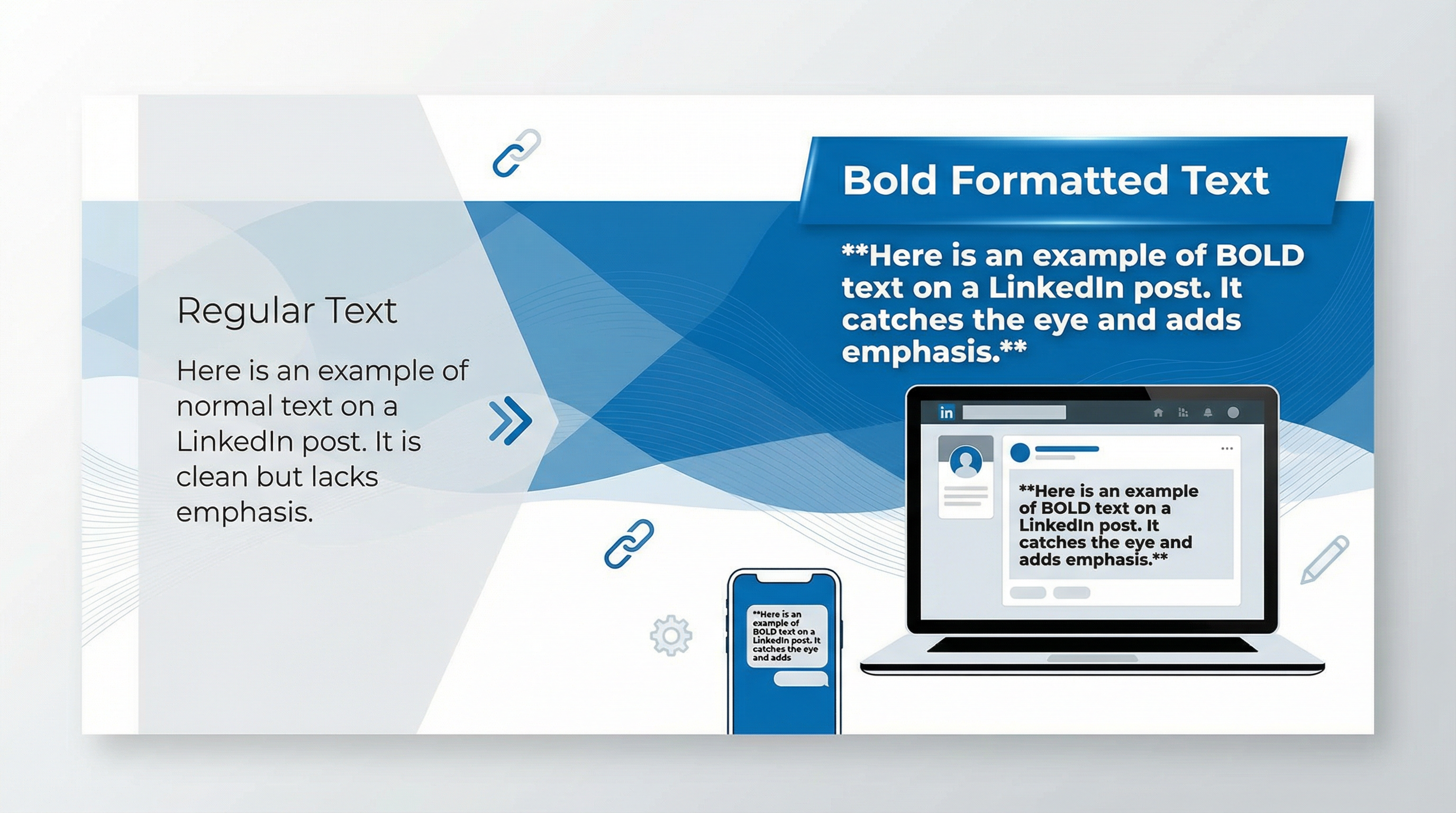
Want to make certain words or phrases in your LinkedIn posts pop? You’ve probably noticed that LinkedIn doesn't have a built-in bold button. It’s a frustrating limitation. You have an important point to make, and you want it to stand out, not get lost in a sea of text.
You might have seen other people using bold and italic text and wondered how they do it. The secret isn't a hidden LinkedIn feature. It's Unicode, a standard that allows for special text characters that look bold or italic.
But finding and using these special characters is a pain. You usually have to go to a clunky, ad-filled website, paste your text, and then copy the formatted version back. It’s a workflow killer.
We built a better way.
Your Free Bold LinkedIn Text Generator
Our Markdown to LinkedIn Converter is the simplest way to get bold, italic, and other formatting into your LinkedIn posts. It's a free online tool that instantly converts your text into a perfectly formatted post, ready to be copied and pasted.
Here's how it works:
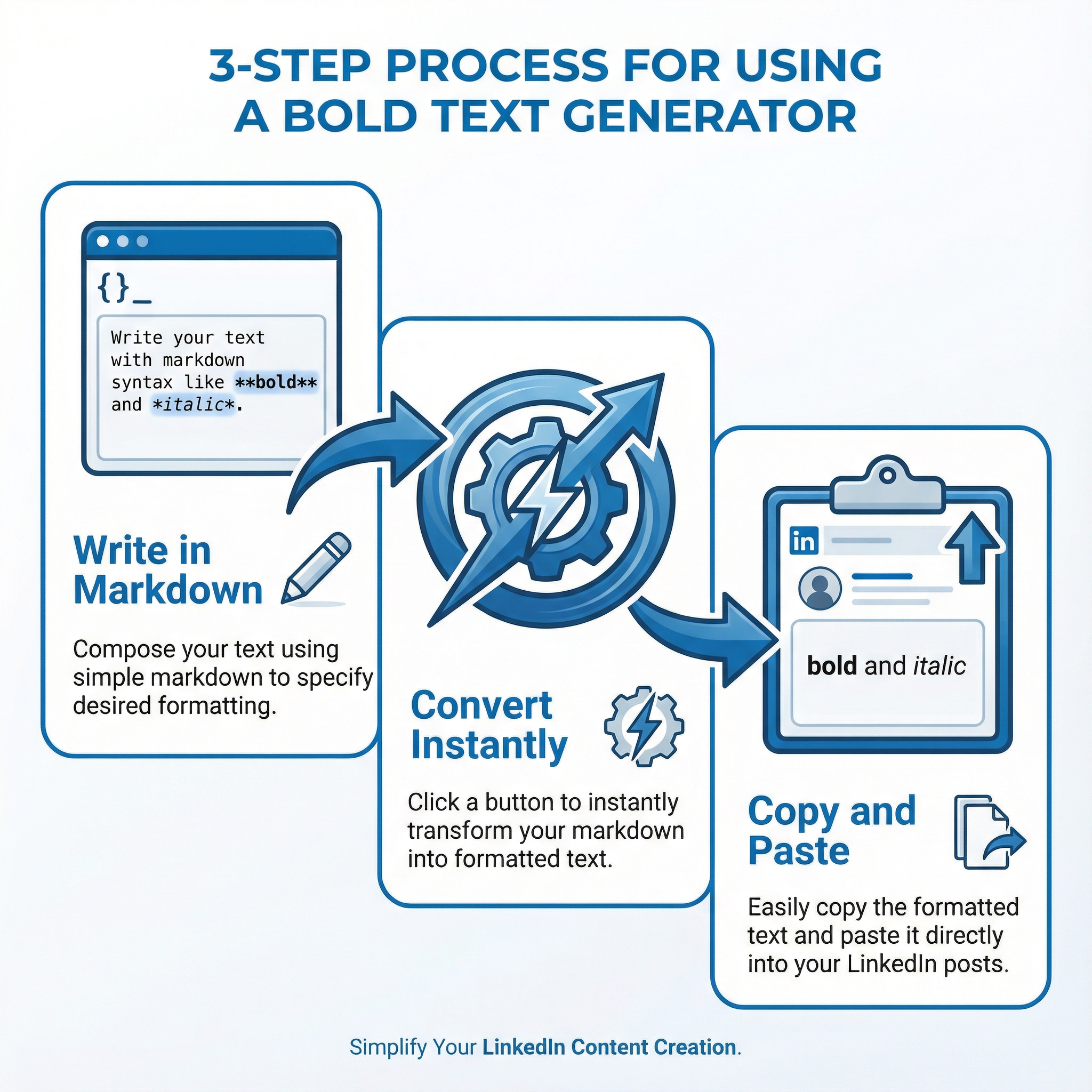
- Write in Markdown: Use simple Markdown syntax to format your text. For bold, just wrap your text in two asterisks, like
**this**. - Convert Instantly: Our tool automatically converts the Markdown into the special Unicode characters that LinkedIn recognizes.
- Copy and Paste: Grab the formatted text and paste it directly into your LinkedIn post. It just works.
No more jumping between multiple tabs. No more weird formatting issues. Just clean, professional-looking posts, every time.
Why Use a Markdown-Based Generator?
Other "bold text generators" make you click buttons or manually highlight text. That’s slow. If you already write your content in an editor like Notion, Obsidian, or VS Code, you're probably already using Markdown.
Our tool is built for your existing workflow. Write your content naturally, with the formatting you already know. Then, let our converter handle the rest. It’s the most efficient way to get from draft to published post.
What You Can Do:
- Bold Text:
**Make your key points stand out.** - Italic Text:
*Add emphasis or quote someone.* - Bulleted Lists:
* Create clean, scannable lists
* To highlight benefits or features
Stop Fighting the Editor, Start Posting
Your focus should be on creating great content, not wrestling with a text editor. Our free tool is designed to be the fastest bridge between your ideas and a perfectly formatted LinkedIn post.
Ready to give it a try? It’s free, and you don’t need to sign up.
➡️ Click here to use the free Markdown to LinkedIn Converter
Stop letting your key messages get lost. Start creating posts that are as professional and impactful as your ideas.
Resources
Enjoyed this article?
Share it with your network
Related Articles
LinkedIn Strikethrough Text: Is It Possible?
Ever wanted to cross something out in a LinkedIn post for effect? This guide shows you how to generate strikethrough text and when you should (and shouldn't) use it.
How to Add Line Breaks in LinkedIn Posts (and Stop Them From Disappearing)
Tired of your carefully formatted LinkedIn posts turning into a wall of text? This guide shows you how to add and preserve line breaks for clean, readable content.
LinkedIn Bullet Points: How to Format Lists That Stand Out
Tired of your LinkedIn posts looking like a wall of text? This guide shows you how to use bullet points to make your content scannable, engaging, and professional.